
What This Page Does
Inventory is the cost-management workspace for products and SKU variants. It controls product-level defaults, SKU overrides, dated Unit COG and FBS shipping periods, and FIFO inventory lots used in profit reporting.
The summary cards show configurable catalog, stock, cost, sales, and ROI totals. The table below is product-first: products are parent rows, and products with multiple variants can be expanded to show their SKUs.
For an active connected shop, Dashboardly makes dated-cost controls available automatically after the initial full import and required cost preparation complete. Inventory checks that readiness each time the page loads; no separate support-side activation is needed. Until the data is ready, period-costing controls stay unavailable to prevent partial cost history from being saved.
Product and SKU Rows
- Set a product default when all variants share the same cost.
- Expand a product and set a SKU override when one variant costs differently.
- SKU-level dated periods take priority over product-level periods for that variant.
- Mixed on a product row means there is no product default, but one or more SKUs have individual costs. A flag beside a product value means some SKUs override that value.
- Seller SKU is the primary identifier on variant rows; product name and TikTok Product ID provide context.
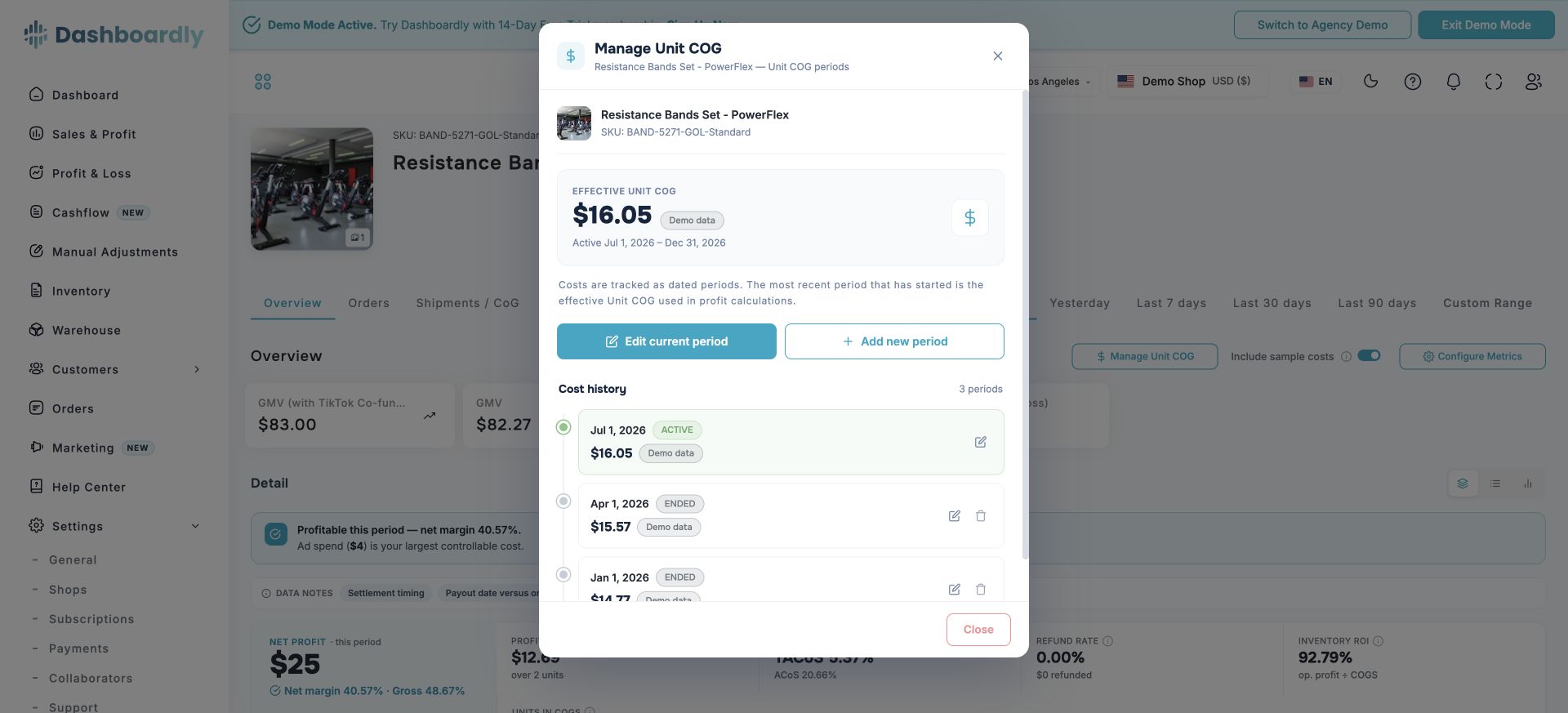
Clicking a product or SKU opens its detail page. On Product Overview, Manage Unit COG follows the selected scope: a specific SKU tab manages that SKU override, while All SKUs manages the product default for current and future SKUs, even if the product currently has only one SKU.
If TikTok deactivates or removes a listing after it has already sold, Dashboardly keeps that sold product available for historical cost work. You can still open its Product Overview and use Manage Unit COG. A removed product with no recorded sales stays hidden because it has no historical profit to correct.
Main Controls
Unit COG
The direct cost of one sold unit. The cost manager shows the current effective value and every earlier or scheduled period. Each period begins on its Effective Date and remains active until the next period starts.
Select All history when one value should cover every historical sale. Dashboardly automatically uses the first qualifying shop-local sale date for the selected product or SKU. Unpaid, on-hold, and cancelled-before-shipment orders are excluded. Any later dated periods remain unchanged.
If there is no qualifying sale yet, choose Immediate to start the value today. Immediate creates a dated cost period starting on today's date in the shop's timezone. Use Custom date for another start date, or All history when the value should also cover earlier sales. When FIFO costing applies, a priced shipment lot remains higher priority than the dated period.
Product and SKU histories are intentionally separate. A product period is the fallback for every current and future SKU. A SKU period remains a higher-priority override for only that SKU, so a child SKU can show a cost while the product row shows Mixed. At product scope, All history searches for the first qualifying sale across every current or historical SKU that belongs to that product.
Shipping Cost / Unit
The dated outbound FBS cost used when TikTok does not provide an authoritative order shipping value. It is separate from Unit COG, TikTok fees, FBT fulfillment charges, and inbound FIFO freight.
The Inventory table and a newly downloaded Export CSV show the value effective today in the shop's timezone, including an explicitly configured zero. Historical profit uses the value applicable to the order date, so compare a past sample against its dated cost history rather than an older Inventory export.
TikTok Shipping Amount
The read-only TikTok Shipping Amount column shows historical shipping-related amounts reported by TikTok for orders containing that product or SKU. Inventory calculates it from its rolling transaction window, which includes up to the last 365 days. Expand the column to see the FBT and FBS TikTok amounts separately.
This is not the editable Shipping Cost / Unit value and it is not your manual carrier cost. An FBS row can still have a TikTok Shipping Amount because TikTok settlement activity can include shipping charges, offsets, discounts, and subsidies even when you fulfill the parcel yourself. Your configured FBS per-order or per-unit cost is resolved separately for Profit & Loss. A specific per-order value takes priority over the per-unit fallback rather than being added on top of it.
Units per bundle
For a multipack SKU, Units per bundle is the number of physical pieces in one transactional TikTok unit. Dashboardly normally reads TikTok's bundle composition. Set a SKU override when the listing metadata does not match what the warehouse ships; entering 1 explicitly treats the SKU as a single piece.
Saving or clearing the override immediately recalculates historical Pieces for that SKU and refreshes its 30-day and 90-day physical-unit velocity. Transactional Units, revenue, order count, per-unit ratios, and regular-order COGS do not change. CSV exports therefore use the same corrected historical piece count as Inventory.
Bulk costs
Apply Unit COG, outbound FBS shipping, or both to several products with an immediate or custom Effective Date. A blank field means “leave this cost unchanged.”
Switch the bulk dialog to Delete dated periods when a dated upload or update started on the wrong day. Select the exact period start date and choose whether to remove Unit COG periods, outbound FBS shipping periods, or both. You can apply the deletion to selected products or to every matching product in the active shop, including products that are not on the current Inventory page.
Large bulk updates and deletions are queued in the background. The dialog closes after Dashboardly accepts the request, and Inventory refreshes automatically when the durable operation completes.
Deleting a dated period does not delete FIFO shipment lots, durable product or SKU defaults, or TikTok FBT warehouse charges. Dashboardly restores the immediately preceding dated value through the next remaining period, so removing a mistaken July 17 period can make the July 1 value apply again until the next valid change.
Import Costs
Download a pre-filled spreadsheet and choose one of three template layouts:
- Products only — one default cost row per product; selected by default.
- Tree view — products with their child SKUs.
- Flat view — SKU rows only.
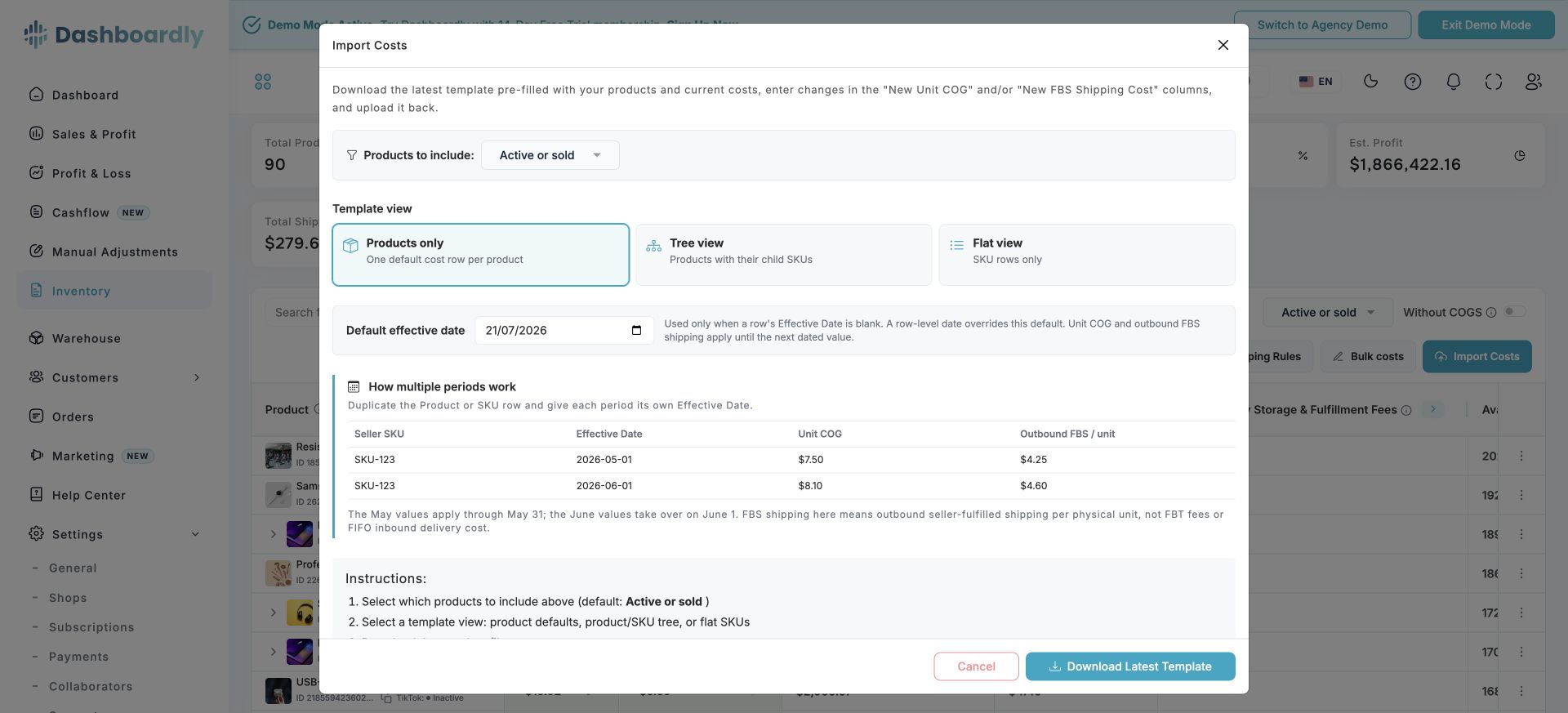
Enter changes only in New Unit COG and/or New FBS Shipping Cost. Current-value columns are reference-only. The dialog's Default effective date applies when a row is blank; a row-level Effective Date overrides it.
New means the value you want to apply, not necessarily a different number. To give an existing cost an earlier starting date, copy that value into New Unit COG and set the correct Effective Date. You do not need to delete existing costs first. Rows with both New columns blank are ignored; leaving those rows in the file does not prevent other filled rows from importing.
The template's current-value columns use the Unit COG and FBS shipping periods effective today in the shop's timezone. This lets you download a fresh template after an import and confirm the values Dashboardly is currently using.
The cost template can include a removed SKU when that SKU has historical sales, because you may still need to add its past COGS. Removed SKUs with no recorded sales stay out of the template. This means a cost template can contain historical sold SKUs that are intentionally absent from the current Inventory table and its regular export.
The regular Export CSV also includes Product ID plus spreadsheet-safe Product and SKU IDs. A current export can therefore be uploaded through Import Costs after you edit Unit COG or Shipping Cost / Unit. Because every nonblank cost in that CSV is treated as a value to apply on the selected Effective Date, use the dedicated template for normal updates when you want blank New columns and the smallest possible change set.
Inventory exports downloaded before August 31, 2026 do not contain Product ID and cannot be matched safely. Dashboardly stops those files with one recovery message instead of listing an error for every row. Download a new Import Costs template or a current Inventory CSV before retrying.
Dated costs are stored to six decimal places. Formula-generated values with additional decimal places are shown with their rounded value in the preview, and the warning reports how many valid values will be rounded before you confirm the import. Invalid negative or out-of-range values are still rejected.
To upload multiple periods in one file, duplicate the same Product or SKU row and use a different Effective Date on each copy.
Shipping Rules
Configure when uploaded FBS shipping fallbacks apply, including sample-order behavior. These rules do not replace TikTok's imported settlement shipping data.
Filters and Search
- Active or sold focuses the table on active listings and products with sales.
- Without COGS keeps a product visible while at least one of its visible SKU variants still lacks a usable cost. Expand a multi-SKU product to see which variants need attention; pricing one variant no longer hides the remaining uncosted variants.
- Shipping rate not set finds SKU variants without a manual FBS rate effective today in the shop's timezone. An explicitly configured zero counts as set, and FBT-only variants are excluded. This checks the configured SKU rate, not whether TikTok has supplied an actual shipping charge for every order. It also does not evaluate a separate per-order shipping rule.
- If TikTok removed an older sold listing and it no longer appears under Active or sold, choose All to find and cost it.
- Search accepts product names, Seller SKUs, exact TikTok Product IDs, and exact TikTok SKU IDs.
- Columns controls which metrics are visible.
- Pagination keeps large catalogs responsive.
When you change or clear a search, any product you already expanded shows its SKU rows again once they finish loading, provided that product is still in the results. You do not need to collapse and reopen it. Searching for a SKU keeps its product's other eligible variants visible when expanded, so you can compare them; the CSV still includes only the variants matching your search.
Export CSV uses the same search, visibility, Without COGS, and Shipping rate not set filters that are currently applied to the table. Choose All and leave Without COGS off when you need a complete costed-and-uncosted Inventory file. Large catalogs are included in full rather than stopping at a fixed row limit. The download is assembled from one stable view of your Inventory records, so a sync cannot move a SKU between pages while the file is being created. If Dashboardly cannot confirm that every matching row is present, the download stops and asks you to retry instead of returning a partial file.
Combine Without COGS and Shipping rate not set to show only variants missing both values. With only the shipping filter on, a product remains in the results while at least one eligible variant has no current rate; expand it to inspect the matching variants. The product/SKU counts and downloaded rows follow that same selection. For example, a dated rate of 2.50 starting tomorrow does not fill today's gap, while an active rate of 0.00 does.
Search by an exact Product ID to export that product's eligible SKU rows. Search by an exact SKU ID to export the matching variant. A Seller SKU search also limits the CSV to matching variants, even when expanding the product in the table shows its other variants for context.
Cost Priority in Reports
Dashboardly resolves Unit COG for each sold unit in this order:
- A priced FIFO lot that covers the unit
- The SKU period active on the order date
- The product period active on the order date
- The durable SKU default
- The durable product default
- Zero when no cost applies
This resolver is shared by Inventory, Sales & Profit, Product Overview, Profit & Loss, and exports. Adding or editing a dated period invalidates the affected report data so the next read uses the new cost.
Cost History
The manager lists active, ended, and future periods in date order. Editing a period changes only that dated record. Adding a newer period causes the prior period to end on the preceding day.
Use periods whenever your supplier or outbound shipping cost changes over time. Do not overwrite the current value if the old value must remain valid for historical orders.
For a one-off mistake, use Bulk costs > Delete dated periods instead of overwriting the value again. Choose the exact start date shown in Cost History. Dashboardly removes only matching dated Unit COG and/or outbound FBS shipping periods and reconnects the surrounding timeline automatically.
A SKU can also have a durable fallback cost. When a product or SKU period is active, the manager shows that period as the effective cost and keeps separate Edit SKU default and Reset SKU default actions for the fallback used after no dated period applies.
Common Questions
Where is a product that I relisted on TikTok?
When the product name and Seller SKU set match an earlier listing exactly, Dashboardly keeps the relisting's orders and costs under the original product. Search Inventory by the product name and expand that row to find its SKUs. The row can show the original TikTok Product ID even though the relisting has a newer ID. Turn off Without COGS if the original product already has a cost. The regular CSV export follows the same rule: a hidden relisting does not add a second set of uncosted SKU rows to the file.
Listings with a different name or Seller SKU set are separate products. See Setting Up Cost of Goods for how costs apply to repeat listings.
What does Manage Unit COG edit on Product Overview?
A selected SKU tab opens that SKU's cost periods. All SKUs opens the product default for current and future SKUs, even when the product currently has one SKU. Use Change scope inside the manager to move between the product default and a specific SKU override.
Why did an earlier month not change?
The new period started after that month. Add or edit the period that covers the earlier order dates.
How do I set Unit COG without finding the first sale date?
Add a period and select All history. Dashboardly finds and previews the first qualifying sale date before you save.
Why does a SKU ignore the product value?
That SKU has its own applicable period, which takes priority over the product default.
Why is the value in Inventory different from the SKU default?
Inventory shows the cost that is effective today. A dated SKU or product period can temporarily take priority over the durable SKU default. Open Manage Unit COG to review the period and edit or reset the fallback separately.
Why is FIFO different from the visible Unit COG?
The table shows the current dated fallback. Profit COGS can come from older priced FIFO lots when those lots cover the sold units.
Why is Shipping Cost / Unit blank for FBT?
The editable field is an outbound FBS fallback. TikTok FBT shipping and fulfillment charges are imported and reported separately.
What happens to cancelled or refunded orders?
An order cancelled before shipment does not consume inventory. A shipped item that is not returned keeps its cost. A physically returned item reverses the inventory-cost impact.
Why are Pieces different from Units for a multipack?
Units is TikTok's transactional quantity. Pieces is the physical quantity: Units multiplied by the effective bundle size. Review the SKU's Units per bundle when Pieces unexpectedly equals Units for a multipack.