
Overview
VAT Settings gives UK and EU sellers one shop-level place to estimate VAT on sales and reclaimable VAT on eligible TikTok fees and VAT-inclusive advertising spend. Each shop has its own configuration, so an account with shops in different countries can use the correct rate and treatment for each market. Dashboardly provides estimates for reporting; confirm your VAT treatment and return figures with your accountant.
Open VAT Settings from the left sidebar while the shop you want to configure is active. The page is available for shops in the United Kingdom or European Union. Switching the active shop switches the configuration shown on the page. If an eligible shop does not show VAT Settings, reload Dashboardly and confirm that the shop's TikTok Shop market is recorded correctly. Active sessions also check access approximately once a minute; background tabs can take longer. Contact Dashboardly support if the page is still missing.
Try VAT Settings in the Demo
Open the Agency Demo, select Aurora Apparel — UK, and open VAT Settings from that shop's sidebar. The example contains a 20% All products rule, a 5% Product rule, a 0% SKU rule, and reclaim settings. These are illustrative examples, not tax classifications for the products shown.
You can edit and preview rules, save them, and revisit their read-only mirror in Manual Adjustments without leaving the selected shop. VAT settings edits are private to your demo session; another visitor starts with the original examples. Existing demo financial reports use the shared seeded baseline. US demo shops do not show VAT Settings.
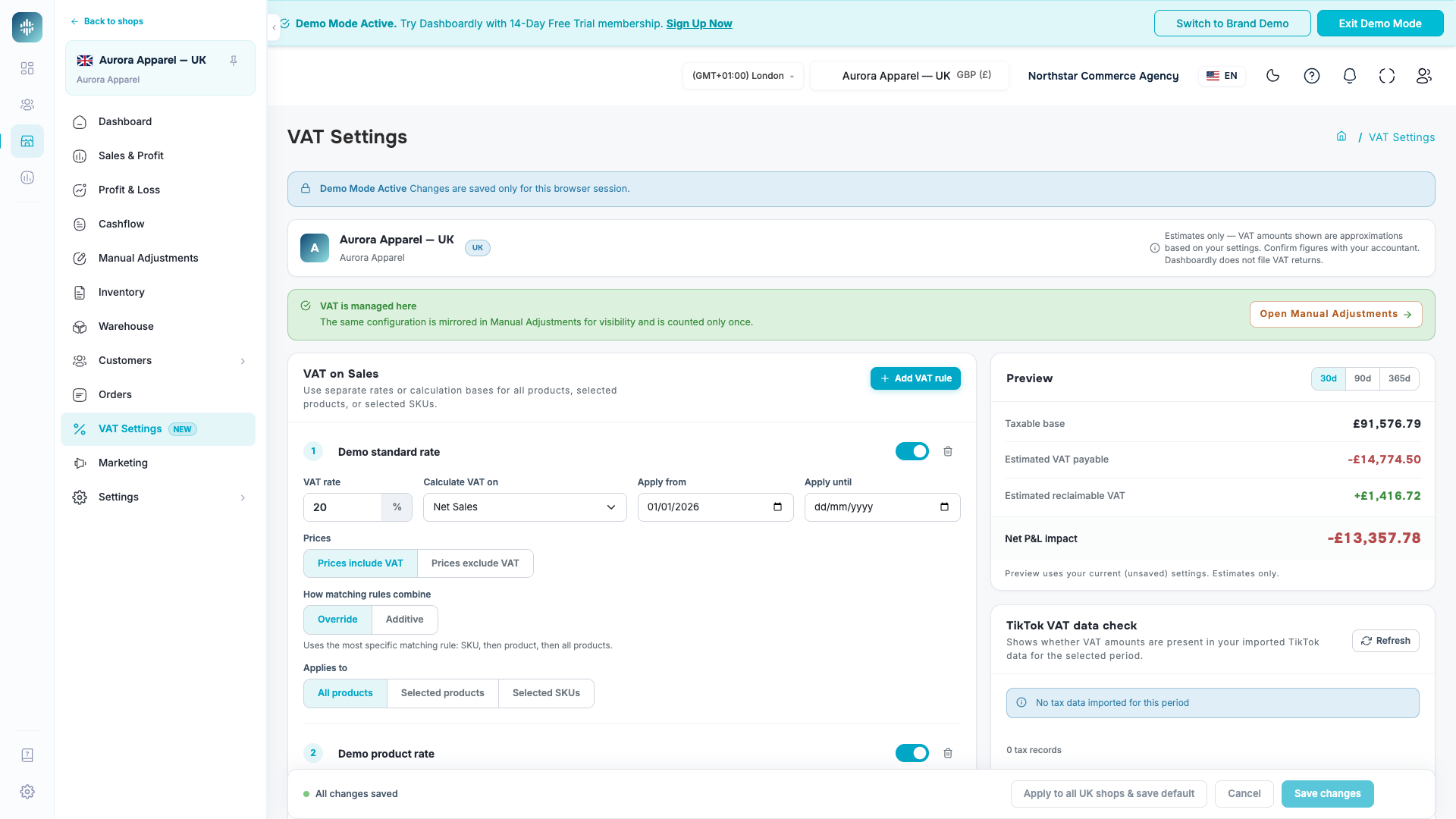
VAT on Sales
Add a sales VAT rule to include Estimated VAT Payable in your financial reports. Each rule has its own name, registered VAT rate, active date range, taxable sales metric, price mode, and catalogue scope. You can keep one rule for the whole shop or add separate rules for products and SKUs that use different rates. Additional rules start switched off: select their scope and dates, then switch them on when ready. The preview combines the complete rule set for the selected period before you save. Invalid fields or conflicting Override rules show a validation message instead of an estimate.
Use All products for a shop-wide rate, Products for one or more complete product listings, or SKUs for selected variants. Override is the normal rule behavior: when scopes intersect, the most specific active Override rule wins. An SKU rule overrides its Product rule, and a Product rule overrides the All products rule. Dashboardly removes the more specific sales from the broader Override rule before calculating VAT, so the same sale is not taxed twice. Override rules at the same scope cannot cover the same Product or SKU during overlapping dates.
Use Additive only when two VAT calculations must intentionally apply to the same sale. An Additive rule is calculated in addition to the matching Override rule and every other matching Additive rule. This preserves explicitly stacked historical VAT formulas, but it can make one sale contribute to more than one VAT calculation by design. Do not change a migrated Additive rule to Override, or create a new Additive rule, unless that treatment has been confirmed for the shop.
Possible overlapping VAT charges lists pairs of enabled rules whose dates overlap when at least one is Additive. The numbers match the rules on the page, even when their names are identical. Check their products, dates, and intended treatment. For a Product rule paired with an SKU rule, the warning is a possible overlap: it does not confirm that the selected SKU belongs to the selected product. Disabled and zero-rate rules, separate date ranges, and disjoint selections at the same scope do not trigger this warning. It is advisory and does not change or prevent saving intentionally Additive rules. Read-only users can also see it.
If only one sales VAT charge is intended, review the full active rule set before changing anything. Changing one rule to Override does not stop another matching Additive rule from applying. Disabling or removing an unintended rule changes reports for the dates it covered, so confirm the correct historical treatment first.
Additive rules preserve the sign of the selected sales metric, just like percentage-based Manual Adjustments. A day with more refunds than sales can therefore reduce the combined VAT estimate. The combined taxable base can include the same sale more than once when Additive rules overlap; it is not a separate sales total.
The preview shows each VAT amount by its effect on profit: a payable charge is negative, while a refund-period VAT credit is positive. Reclaimable VAT is positive unless it represents a reversal. Zero amounts have no positive or negative sign.
Override rules use a non-negative taxable base for each reporting day. A negative-base day contributes zero for that rule, so its estimate can differ from applying a rate directly to the net sales total for the whole month. Migrated Additive formulas retain their signed calculation instead.
A 0% Product or SKU rule can exclude zero-rated catalogue items from a broader shop-wide rate. For example, a UK shop can use a 20% All products rule and a 0% SKU rule for a zero-rated item. Use dated rules when a rate changes: end the old rule on the last applicable day and begin the new rule on the next day.
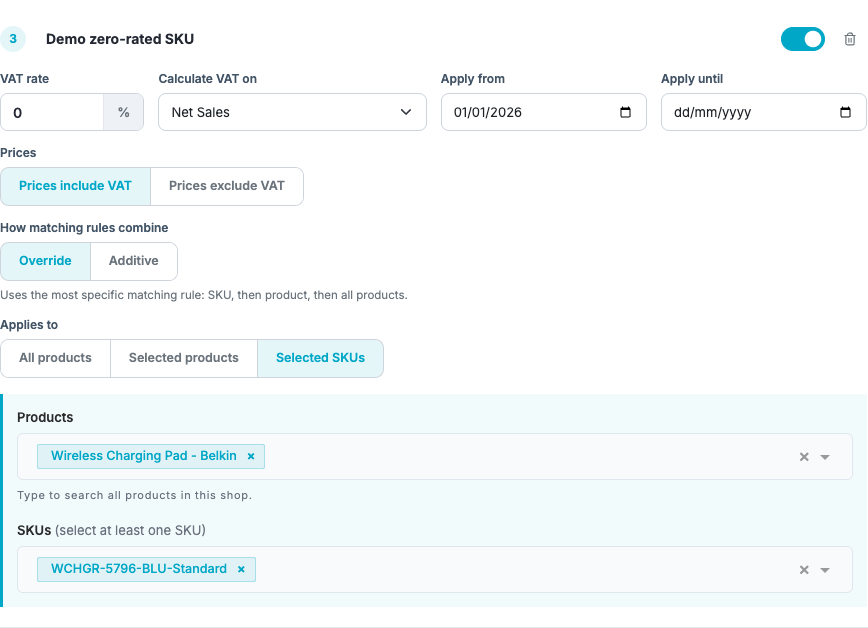
Both the start and end dates are inclusive calendar days in the shop's timezone. A rule with the same start and end date applies on that one day. Dates use YYYY-MM-DD, without a time or UTC offset.
Preview periods contain 30, 90, or 365 calendar days, including today in the active shop's timezone.
For saved settings, the VAT payable and reclaim estimates use the same financial amounts as Profit & Loss for the same shop, dates, and timezone. When Profit & Loss shows preliminary amounts, VAT estimates can change as those amounts are updated. If some days cannot be calculated, the preview shows a retry state instead of zero estimates. Your saved settings and the separate TikTok VAT data check remain available.
The price mode controls how the rate is applied:
| Price mode | Use when | Example at a 20% VAT rate |
|---|---|---|
| VAT included | Your selected sales amount already includes VAT | A VAT-inclusive amount of £120 contains £20 VAT, so Dashboardly extracts 16.67% of the amount |
| VAT excluded | Your selected sales amount is before VAT | A net amount of £100 produces £20 VAT, so Dashboardly applies the full 20% |
Choose the mode separately for each rule so it matches how those product prices and the selected sales metric are recorded. Changing the mode changes the estimated VAT amount even when the registered rate stays the same.
The percentage shown below the price mode is the VAT share of the selected sales base, not another registered rate. With Prices include VAT, a registered rate of 20% extracts 20 ÷ 120, or approximately 16.67% of that base. Entering 16.67% as the registered rate instead extracts approximately 14.29%. Keep the registered rate at 20% when that is the applicable rate; do not enter 16.67% merely because the prices include VAT. The displayed percentage is rounded for readability, while the financial preview uses the saved rate. The selected base matters: the VAT-inclusive taxable amount is not necessarily the report's Gross Sales metric before discounts.
Choose the Sales Base
Use Calculate VAT on inside each sales VAT rule to choose the amount that matches your accounting treatment. The selected base changes the VAT estimate; it does not change the definition of Net Sales or add income to Net Profit.
| Sales base | What it covers |
|---|---|
| Net Sales | The report's product sales metric, excluding buyer-paid shipping. For shops using customer-paid Net Sales, TikTok-funded product discounts are excluded. Product refunds are reported separately. |
| Seller-credited Net Sales | Product income after seller-funded discounts, including TikTok's product funding, before product refunds. Buyer-paid shipping is excluded. |
| Seller revenue after refunds (including buyer shipping) | Seller product income including TikTok product funding, plus buyer-paid shipping, less product revenue and buyer shipping refunded. |
Choose Seller revenue after refunds (including buyer shipping) when your intended base includes TikTok-funded product discounts and the shipping paid by your buyers, after refunds. Product refunds reverse the seller's product income, including the funded part; seller-discount reversals are taken into account. A separate funding clawback is not subtracted again. TikTok shipping subsidies, carrier charges, platform fees, and affiliate commissions are excluded from this base. Orders cancelled before shipment do not create a sale in this calculation.
For example, €1,000 in customer-paid product sales, €200 in TikTok product funding, and €40 in buyer-paid shipping, less €120 in reversed seller product income and €10 in refunded buyer shipping, produce a base of €1,110. With a registered rate of 21% and Prices include VAT, the VAT estimate is €192.64: €1,110 × 21 ÷ 121. Keep the registered rate at 21%; do not enter 17.36% as the rate.
The base follows the report's dates. On an Order-date report, sales follow their order date and refunds follow their refund date. A refund for an earlier sale can therefore reduce a later period. Rule start and end dates are inclusive shop-local calendar days. Override rules use a non-negative base for each day: a day with more refunds than income contributes zero rather than a credit. Additive rules retain the signed calculation and can produce a refund-period credit. Review that behavior before comparing the estimate with a calculation applied once to an entire month's total.
TikTok product funding already contributes to Operating Profit and Net Profit through the seller's financial activity. You do not need an additional income adjustment to include it in profit. Adding it again would count the same income twice. Review the sales base separately from that profit calculation.
Reclaimable VAT
Turn on Reclaimable VAT when your business can reclaim VAT charged on eligible TikTok services. Enter the reclaim rate and effective date, then select only the fee groups supported by your invoices and accounting treatment. Available groups include Fees & Taxes, FBT fees, Smart Promotion fees, affiliate commissions, and FBT warehouse service fees. The preview recalculates as you change the reclaim rate, effective date, or fee selections, so you can review the estimated reclaim before saving. It uses the current values in the form, including unsaved changes.
Net Ad Spend (VAT included) is a separate, optional selection for paid advertising. It starts switched off. Enable it only when the Net Ad Spend reported in Dashboardly already includes VAT that your business can reclaim, and your advertising invoices confirm that treatment. The estimate uses Net Ad Spend after advertising credits, with the reclaim rate and effective date above. For example, VAT-inclusive Net Ad Spend of £120 at a 20% rate contains £20 of VAT. The displayed advertising spend stays unchanged; the estimated reclaim contributes separately to profit.
The word Net means after advertising credits; it does not establish whether VAT is included. If your invoice adds VAT on top of the advertising spend shown in Dashboardly, leave this selection off: extracting VAT from that spend would overstate reclaimable VAT and profit. Affiliate ads commission remains a separate creator commission, so selecting it does not reclaim VAT on paid advertising. Do not also enter a Manual Adjustment for the same reclaim. Confirm the correct treatment for each shop before applying an agency regional default.
Shipping is a separate choice. Enable shipping reclaim only when the shipping service shown by TikTok is eligible for reclaim in that shop. For example, carrier costs invoiced directly to you may need to be reclaimed from the carrier invoice instead of through TikTok fee reporting. The status panel also reports whether TikTok is returning usable VAT fields for the selected period; zero or missing fields do not prevent you from using a manual configuration.
For a common UK setup where consumer prices already include 20% VAT, select VAT included and enter a 20% registered rate. Dashboardly extracts 16.67% of the VAT-inclusive sales amount; it does not subtract a second 20%. Reclaim can be enabled separately for platform fees, FBT fulfilment charges, and Smart Promotion fees when your invoices and accounting treatment support it. Affiliate commission reclaim should be selected only when the underlying creator or affiliate charge carries reclaimable VAT. Confirm eligibility with your accountant rather than assuming every affiliate is VAT registered.
Apply One VAT Setup Across Agency Shops
Agency owners can save the active UK or EU shop's general all-products setup as a regional default. Configure and review the shop first, then choose Apply to all UK shops & save default (or the equivalent EU market action). Dashboardly applies all All products sales rules, including their dates and rule behavior, plus the reclaim rate and selected fee groups to every eligible shop in that region. Product and SKU rules remain shop-specific because catalogue identifiers are different between shops. Shops outside the selected region are not changed, and any shop that cannot be updated is listed in the result so you can review it separately. Collaborators and read-only support users can review the selected shop's settings but cannot read, create, or change an agency owner's regional default.
Applying a regional default replaces the shop's All products rules and reclaim settings, while preserving its existing Product and SKU rules. Those shop-specific rules keep their identities, catalogue targets, dates, rates, and rule behavior. Review the combined preview on each shop when a specific Additive rule intentionally stacks with the new general rate.
The regional default also applies automatically when the agency connects a new shop in that market. This avoids repeating the same setup for every client while keeping UK and EU treatments separate. The default does not decide the legal effective date for you: enter the date confirmed by the brand and its accountant before saving. Review each client's invoices and VAT registration status, especially affiliate commissions and shipping, because a shared rate does not guarantee that every cost group is reclaimable for every business.
Existing VAT Manual Adjustments
An existing manual VAT expense takes priority over a regional default when a new shop connects. Review that expense on the shop's VAT Settings page before adopting it or changing its scope.
Compatible existing Taxes / VAT / GST percentage formulas migrated from Manual Adjustments already appear as saved rules in VAT Settings. Their rates, base metrics, dates, and Product or SKU selections are preserved, including recurring formulas and one-day percentage formulas. You do not need to add those rules again. If a compatible entry has not yet been adopted, choose Manage in VAT Settings to manage it from this page.
Migrated percentage formulas use VAT excluded and Additive so overlapping historical formulas keep the same combined P&L amount. A legacy 16.67% formula therefore remains a 16.67% calculation; it is not silently changed into a 20% VAT-included rule. Review the price mode and rule behavior with your accountant before changing them.
After the move, each rule can still appear on Manual Adjustments for visibility, marked as managed by VAT Settings. These are shared calculations, not duplicate expenses, and each amount is counted only once. Edit the rules from VAT Settings rather than from the Manual Adjustments form.
The Products column shows the rule's catalogue scope: All products, Selected products with the number of products, or Selected SKUs with the number of variants. The same scope appears on mobile. It describes the VAT rule, not a second allocation of manual expenses. Archived VAT history without an active rule is labelled Managed in VAT Settings rather than assigned an assumed product scope.
A fixed one-time VAT income entry, such as an invoice reclaim received on a specific day, remains a normal historical Manual Adjustment. It is not converted into a sales VAT rule and continues to affect that historical period exactly as entered.
While VAT on Sales is enabled for a shop, Dashboardly prevents adding, converting, or resuming a separate manual VAT adjustment for the same scope. Change the existing VAT Settings instead. Unrelated expenses and separate shops are not affected.
The managed row remains visible and read-only if VAT Settings is temporarily unavailable. Contact Dashboardly support before changing that VAT calculation in this case.
Dashboardly asks you to review entries instead of moving them automatically when their ownership is ambiguous, a merchant-wide adjustment could apply to more than one shop, catalogue items do not belong to the selected shop, or the adjustment uses an unsupported allocation. New overlapping Override rules at the same scope are also invalid. Compatible legacy percentage formulas are migrated as Additive rules, where an overlap is intentional and preserves the original sum. Resolve any reported conflict in Manual Adjustments, then return to VAT Settings.
Other VAT Records
VAT Settings estimates VAT on sales and reclaimable VAT for financial reporting. Keep these other VAT records in their existing locations:
- VAT reported by TikTok: Dashboardly shows settlement VAT or tax lines under Fees & Taxes when TikTok supplies them. Do not create a second adjustment for the same line.
- An exact VAT payment or refund: Record a fixed, one-time VAT/GST Payments Manual Adjustment on the actual date. This remains separate from the recurring sales estimate.
- Import VAT on inventory: Add Import VAT to the product or SKU landed cost on Inventory so margins include the complete cost of bringing stock into the warehouse country.
- Your VAT or Tax ID on Dashboardly invoices: Open Settings > Subscription > Manage Billing and update the billing address and tax ID in the billing portal.
Do not use a second recurring Manual Adjustment for a period already covered by VAT Settings. A fixed one-time payment or refund can remain separate when it represents an actual transaction rather than another estimate.
Common Questions
Why is VAT Settings not shown for one of my shops?
The page is shop-specific and is available only for UK or EU shops. Confirm that the correct shop is active and that its TikTok Shop market is recorded correctly. US and other unsupported markets do not show the page. If the shop is eligible but the navigation item is still missing after one minute and a reload, contact Dashboardly support.
Does Dashboardly file my VAT return?
No. Dashboardly estimates VAT payable and reclaimable VAT for management reporting. It does not submit returns, determine legal eligibility, or replace the invoices and records required by your tax authority.
Why does TikTok VAT coverage show zero?
TikTok can return zero or omit VAT fields even when a seller has a VAT obligation. The coverage panel describes the data received for the selected period. You can still configure a manual rate and eligible fee groups when the TikTok fields are not usable.
Dashboardly preserves VAT amounts supplied with TikTok transactions separately from your configured estimates. A non-zero amount does not confirm that VAT on advertising, platform fees, or affiliate commissions is reclaimable. These transaction amounts are not VAT invoices, do not automatically switch reclaim on, and are not deducted again from profit. Dashboardly does not currently import tax invoices automatically; use your invoice records and accountant's advice when choosing eligible expenses.
Can different products use different VAT rates?
Yes. Add separate Product or SKU rules and select the catalogue items for each rate. For normal Override rules, the SKU rule is applied first, then the Product rule, then the All products rule. Use a 0% specific Override rule for zero-rated items that must be excluded from a broader rate, and use non-overlapping date ranges when a rate changes over time. Use Additive only for an intentionally stacked VAT calculation that must apply on top of another matching rule.
Why can I view the page but not save changes?
Shop spies have view-only access. For a collaborator, the account owner can grant VAT Settings: View or VAT Settings: Edit for each assigned eligible shop under Settings > Collaborators. View allows a team member to review rules and previews but not save changes; Edit allows changes for that shop. This is separate from Profit & Loss access. Existing collaborators who previously reached VAT Settings through Profit & Loss keep that access until the owner explicitly changes their VAT Settings permission.