
Overview
If you use Fulfilled by Seller (FBS) shipping, TikTok Shop doesn't track your shipping costs, so they won't show up in your P&L automatically. Dashboardly gives you four ways to add these costs so your Operating Profit is accurate.
Which Method Should I Use?
Pick the method that matches how your shipping costs are structured. Most sellers only need one of these; you can always switch or combine them later.
| Your situation | Best method | Why |
|---|---|---|
| Same shipping cost for every order | Method 4: Per Order Flat Rate | Set once, applies automatically to every order -- no data entry per product or per order. |
| Different cost per product or SKU (e.g., small vs. heavy items) | Method 1: Inventory Defaults | Set a per-unit shipping cost at product level; all SKUs inherit. |
| You have exact shipping costs per order from your carrier invoices | Method 2: Bulk CSV Import | Upload a CSV mapping each order to its actual shipping cost. |
| A few one-off corrections for specific orders | Method 3: Manual Adjustments | Quick one-order edits without a CSV. |
Jump to the section that matches your situation, or read through all four methods below for full detail.
Method 1: Inventory Defaults (Product or SKU Level)
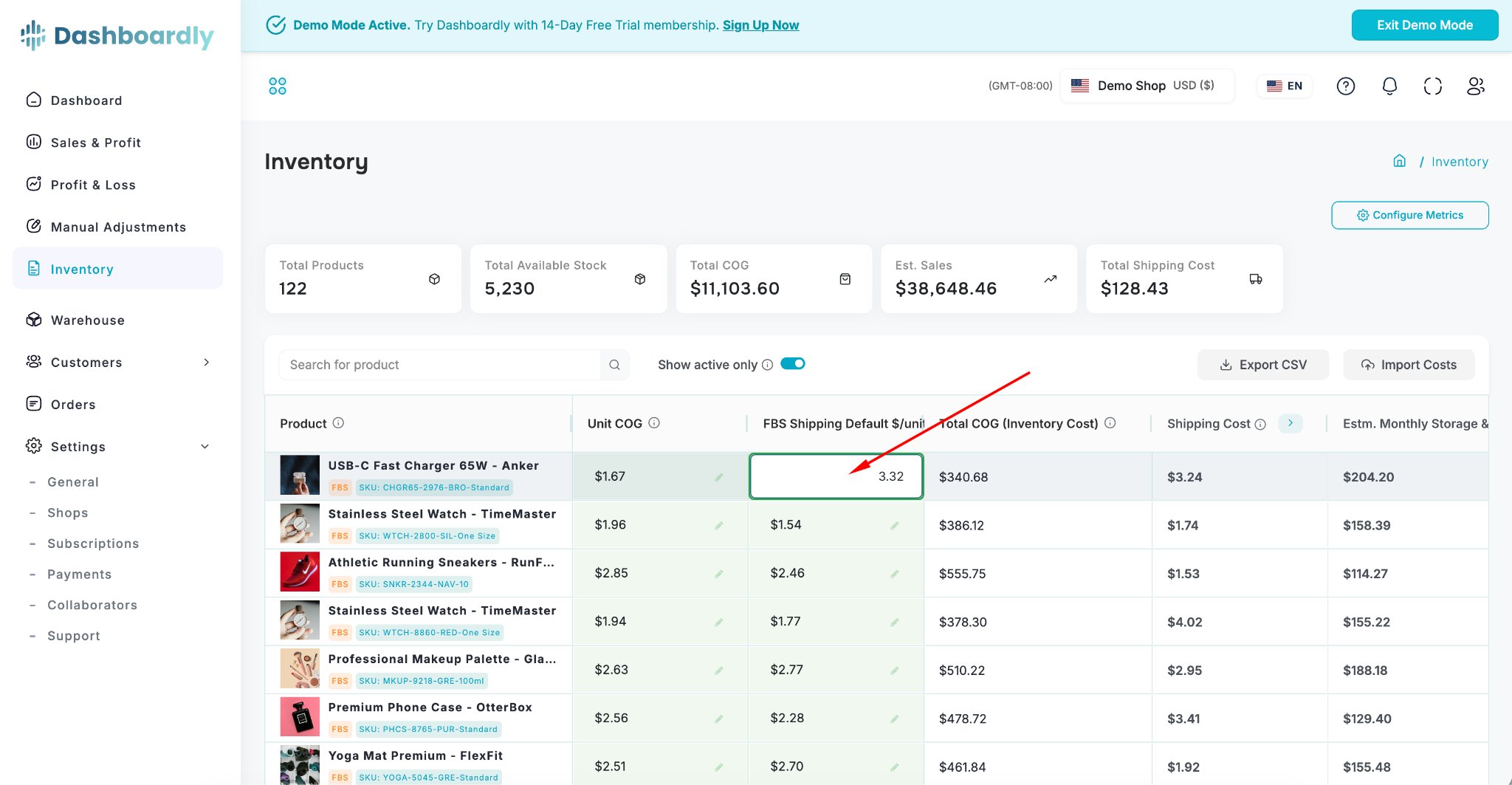
The easiest way is to set a default shipping cost per unit. You can do this at the product level (recommended) or for individual SKUs.
Setting at the Product Level (Recommended)
- Go to the Inventory page.
- Find the FBS Shipping Cost/Unit column in the table.
- Click on the cost field in the product row (the top-level row, not a SKU row).
- Enter the cost per unit (e.g., $5.50).
- All SKUs under that product will automatically inherit this value.
This is the fastest approach -- set it once per product and every variant gets the same shipping cost.
Overriding for Individual SKUs
If certain variants cost more to ship (e.g., larger or heavier items), you can override the product default:
- Expand the product row to see its SKUs.
- Click on the FBS Shipping Cost/Unit field next to the specific SKU.
- Enter the SKU-specific cost.
The override applies only to that SKU. All other SKUs continue to inherit from the product default.
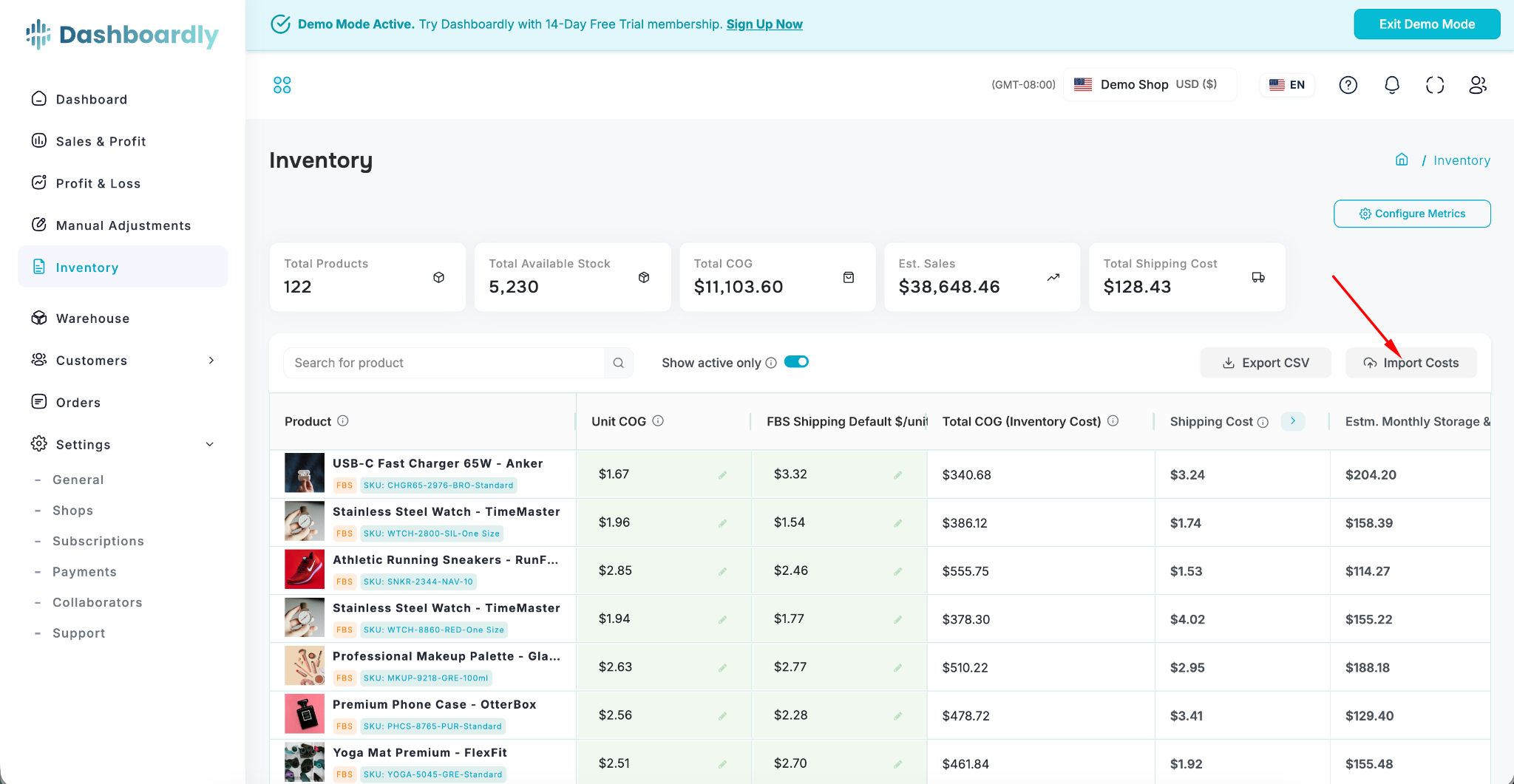
If you have many SKUs, there's a faster way: click Import Costs at the top of the Inventory page. Download the Excel template -- it already has all your SKUs listed. Fill in the FBS Shipping Cost column and upload the file back. All defaults will be updated at once.
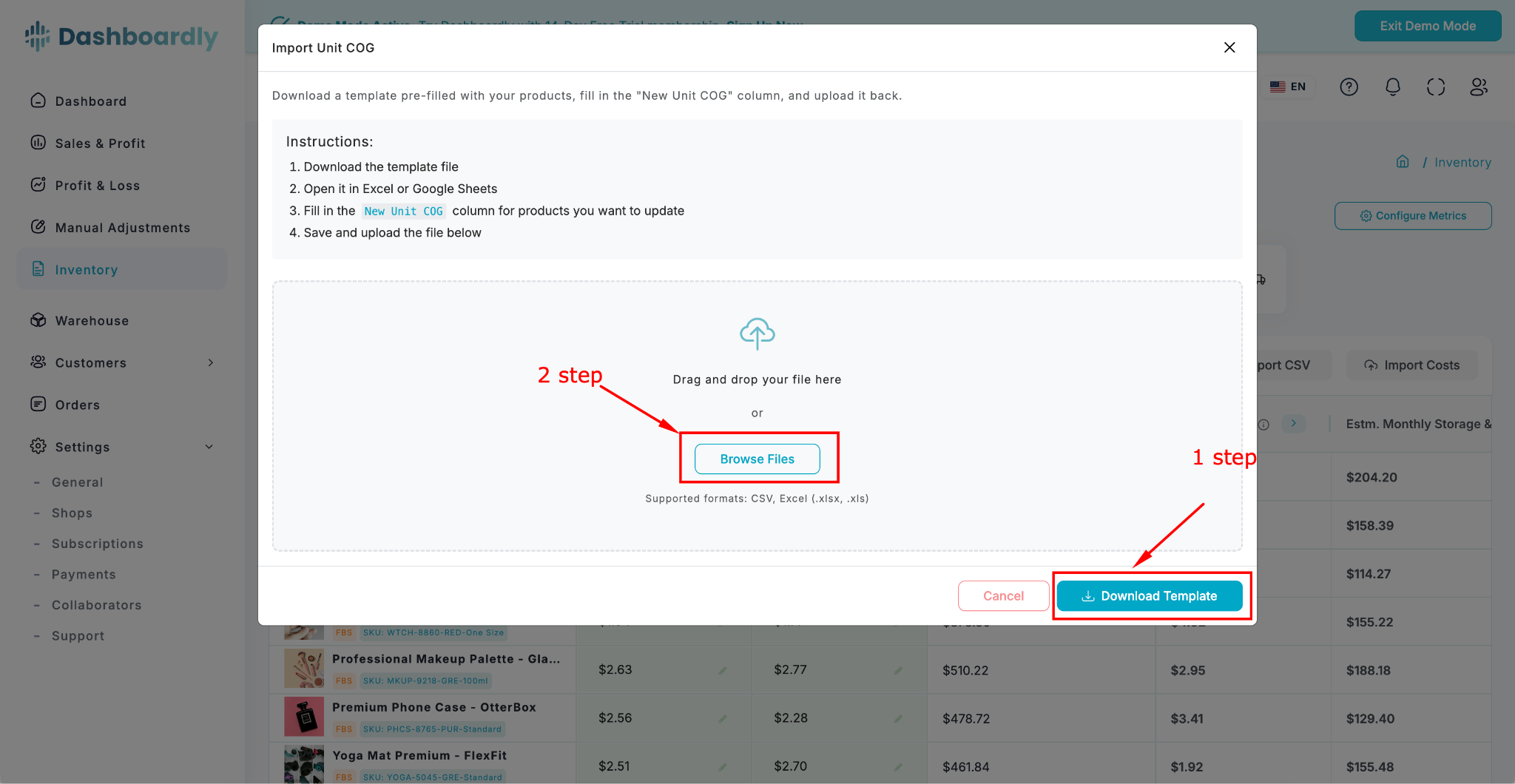
⚠️ Important: These defaults apply retroactively to all orders -- past, present, and future. If you set $5 per unit today, your P&L for previous months will also update to include that shipping cost. If you later change the value from $5 to $7, all periods will reflect $7. Order-level overrides (from CSV import or manual adjustments) always take priority over these defaults.
Method 2: Bulk CSV Import on Orders Page
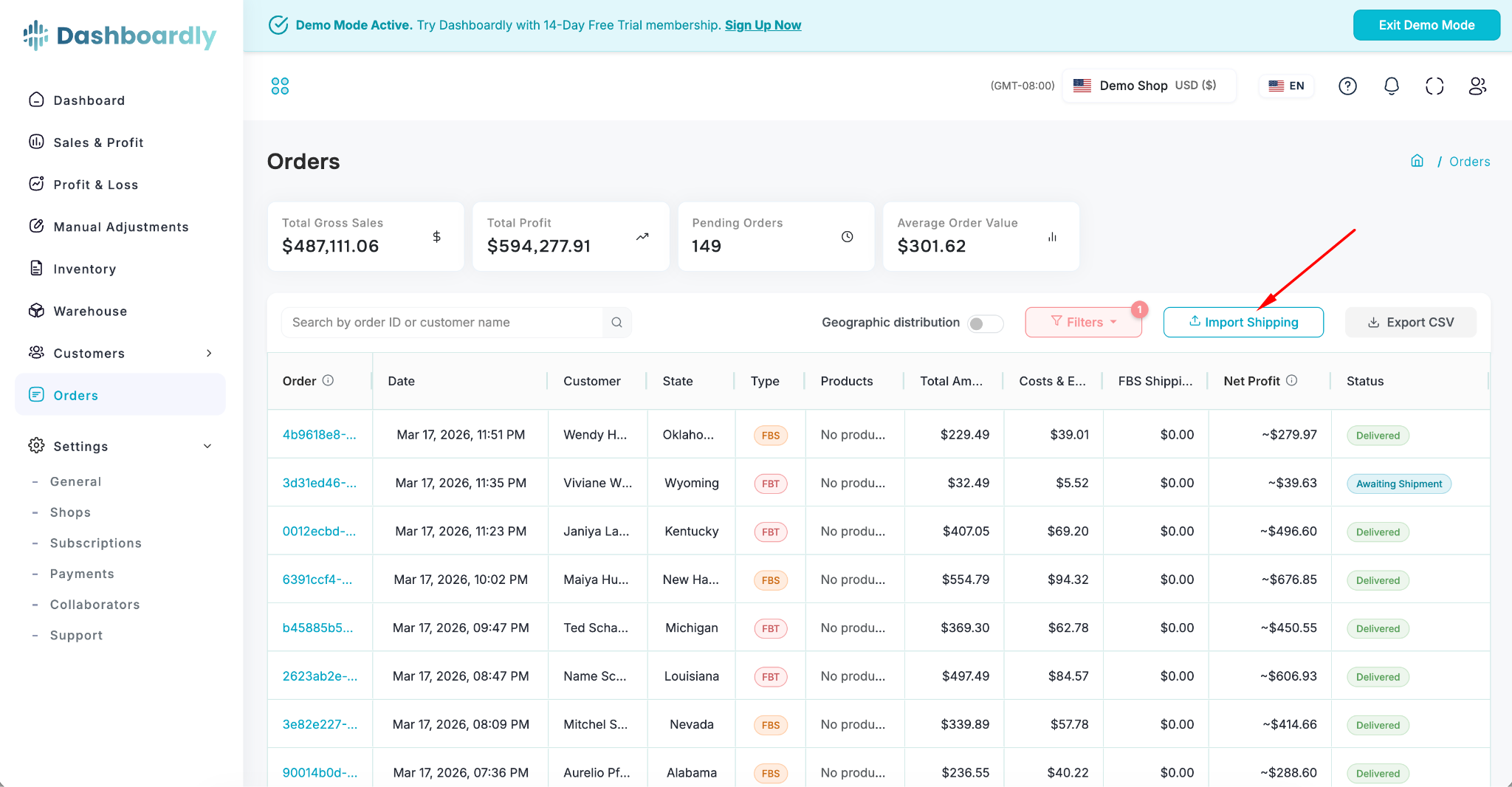
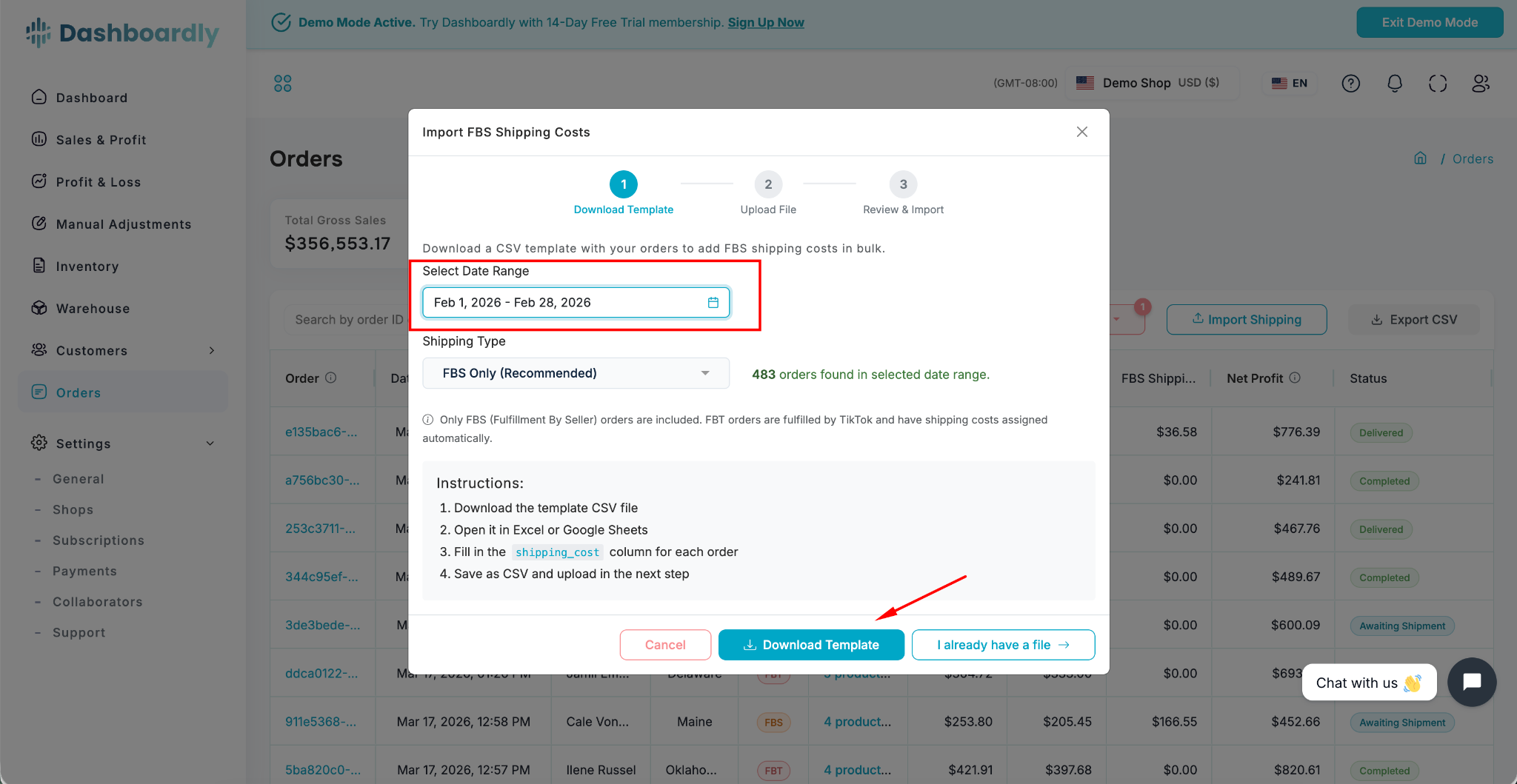
For adding shipping costs to existing orders in bulk, go to the Orders page and click the FBS Shipping Import button.
Step 1: Download Template
Select a date range and click Download Template. You'll get a CSV file with all your FBS orders. Each row is one order. The shipping_cost column will be pre-filled if a cost was already set; otherwise, it's empty. Fill in the shipping cost for each order and save the file.
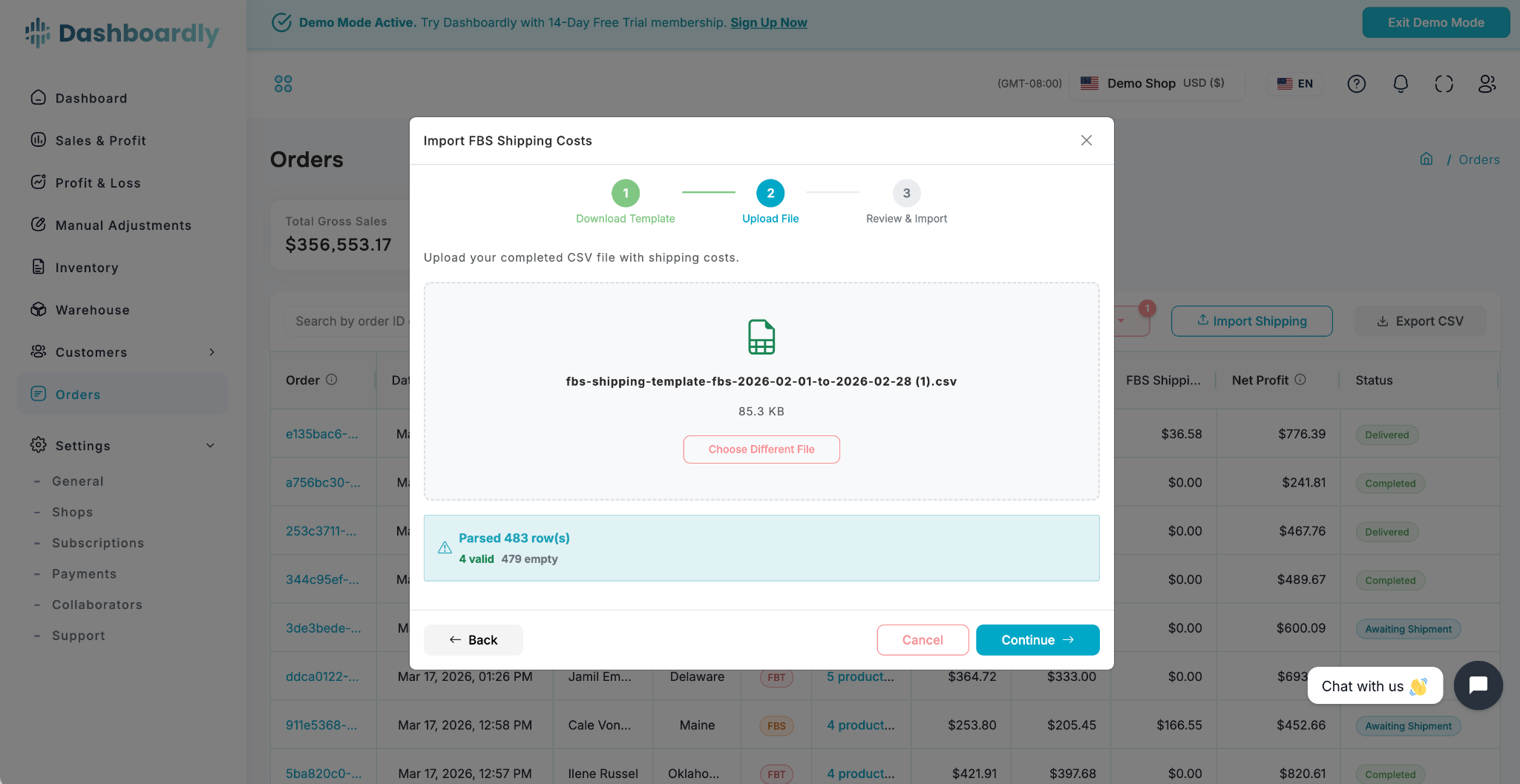
Step 2: Upload
Drag and drop or select your CSV file. The system will validate it and show you a summary: how many rows are new, how many are updates to existing values, and whether there are any errors.
Step 3: Choose a Distribution Method
When an order has multiple SKUs, the system needs to know how to split the shipping cost among them. You have three options:
- By Revenue (default) -- Cost is distributed proportionally to each SKU's price. A $40 item gets twice the shipping allocation of a $20 item. This is the most accurate for most sellers.
- By Quantity -- Cost is split evenly per unit. If an order has 3 units total and shipping is $15, each unit gets $5.
- Equal -- Cost is split equally among SKUs, regardless of price or quantity.
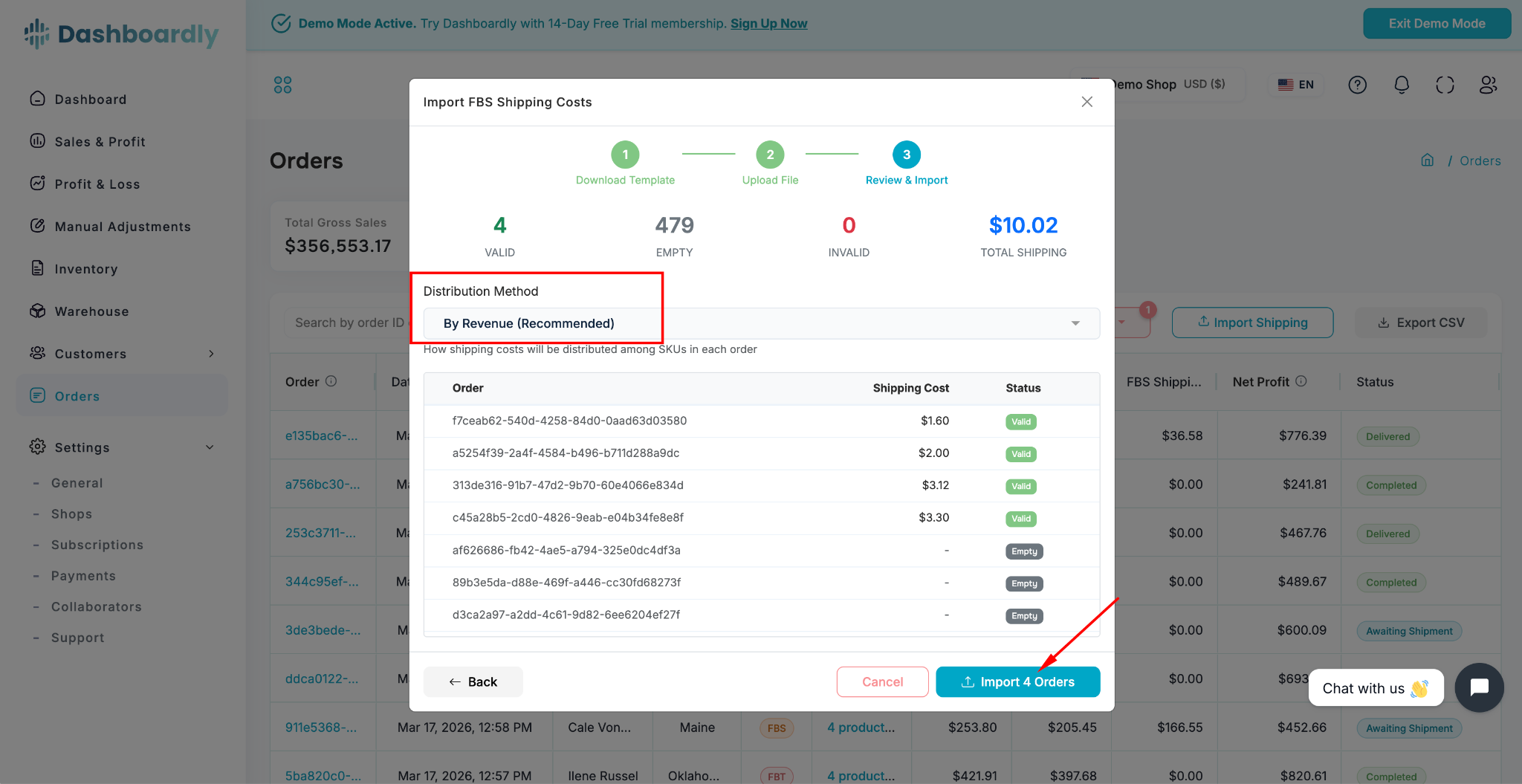
Review the preview table, confirm, and click Import. Shipping costs are now assigned to all those orders.
Method 3: Manual Adjustments
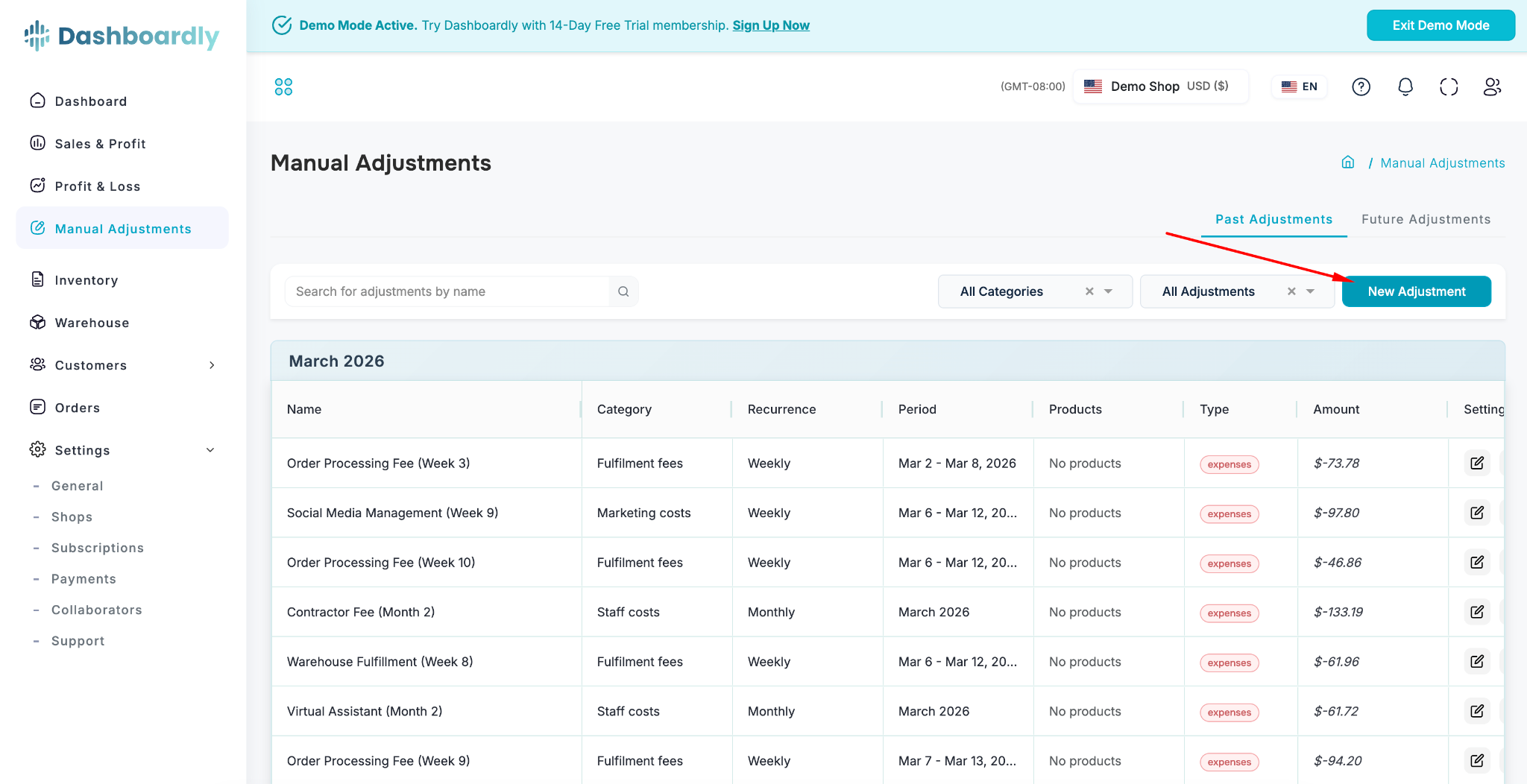
For individual orders, you can use Manual Adjustments.
- Go to the Manual Adjustments page.
- Click New Adjustment.
- Add an FBS shipping cost for the specific order.
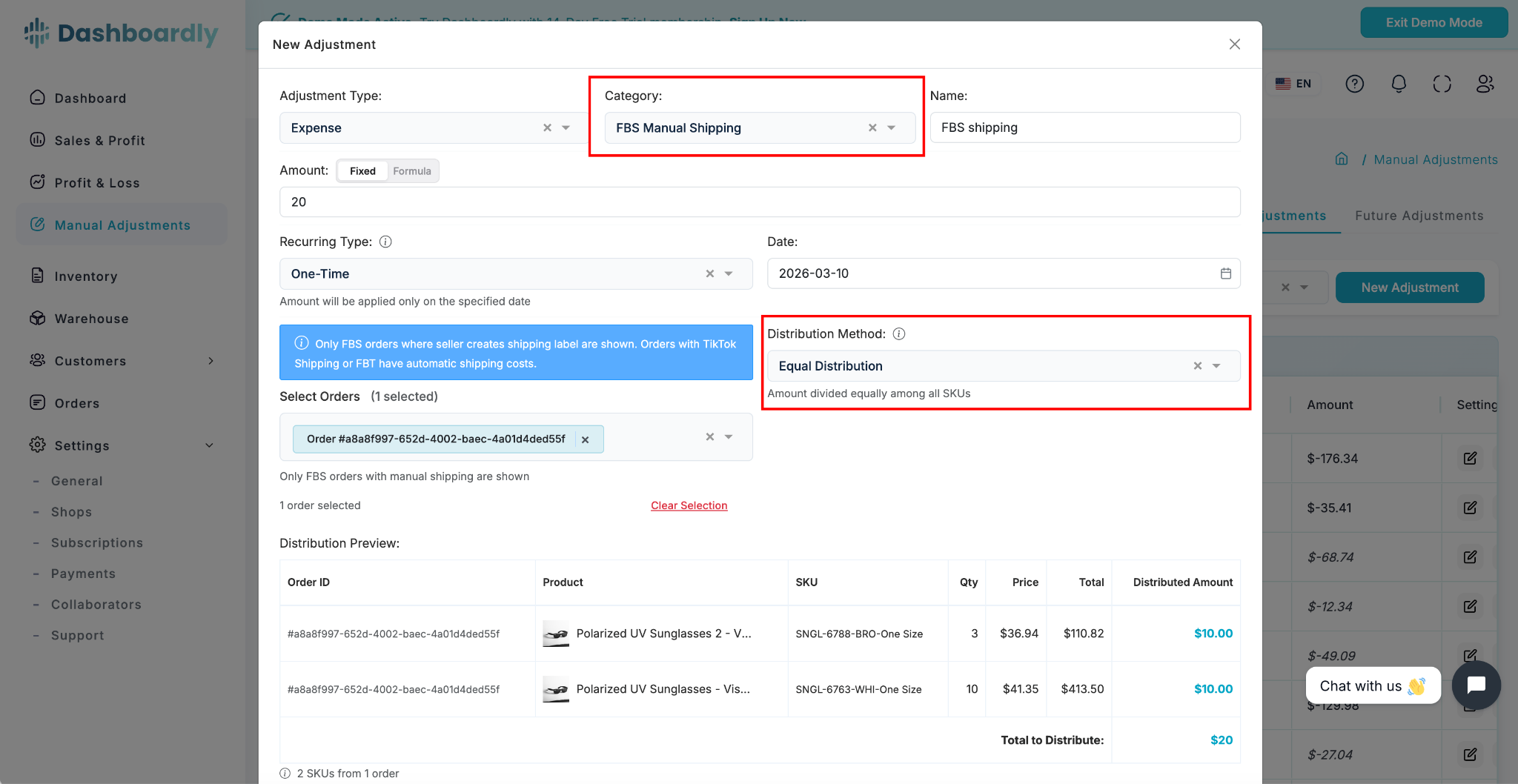
This is useful for one-off corrections -- for example, an order that had an unusually high shipping fee. The same distribution method applies: the cost will be split among the order's SKUs based on the method you choose.
P&L Impact
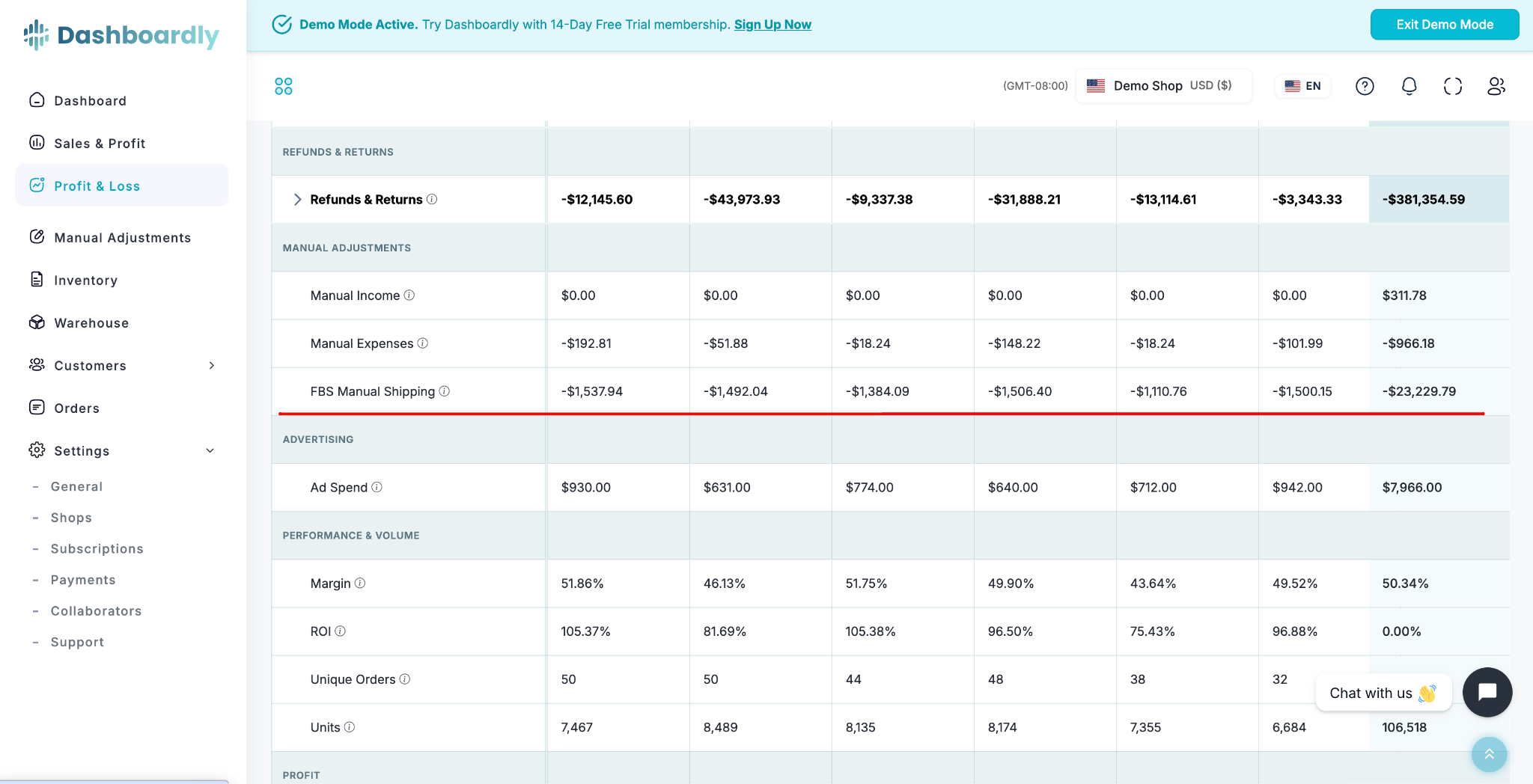
All shipping costs you add through any of the three methods appear on the Profit & Loss page as a line called FBS Manual Shipping. This amount is subtracted from your Operating Profit, so your P&L accurately reflects your true margins.
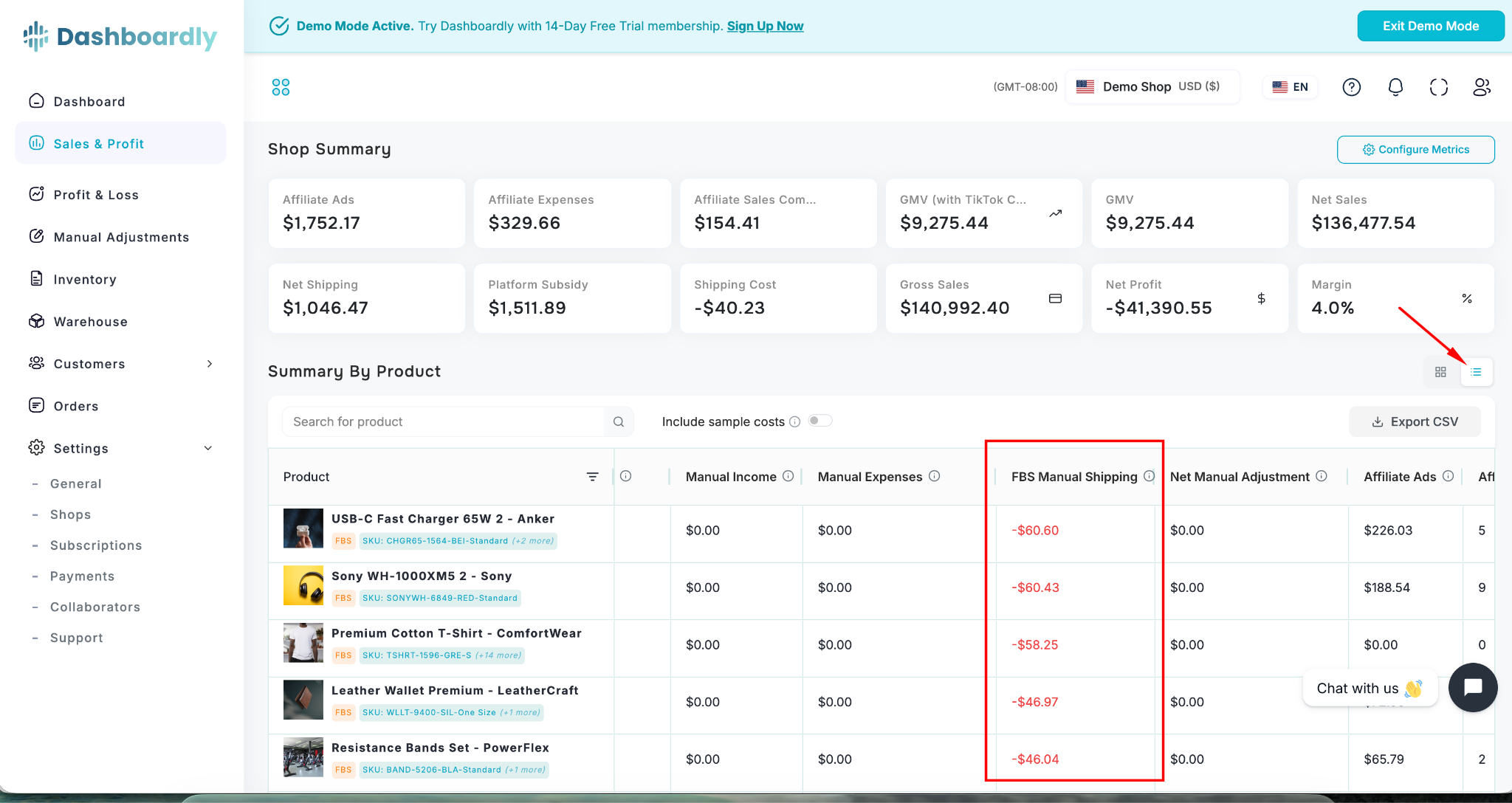
On the Sales & Profit page, you can see the FBS Manual Shipping column per product in table view.
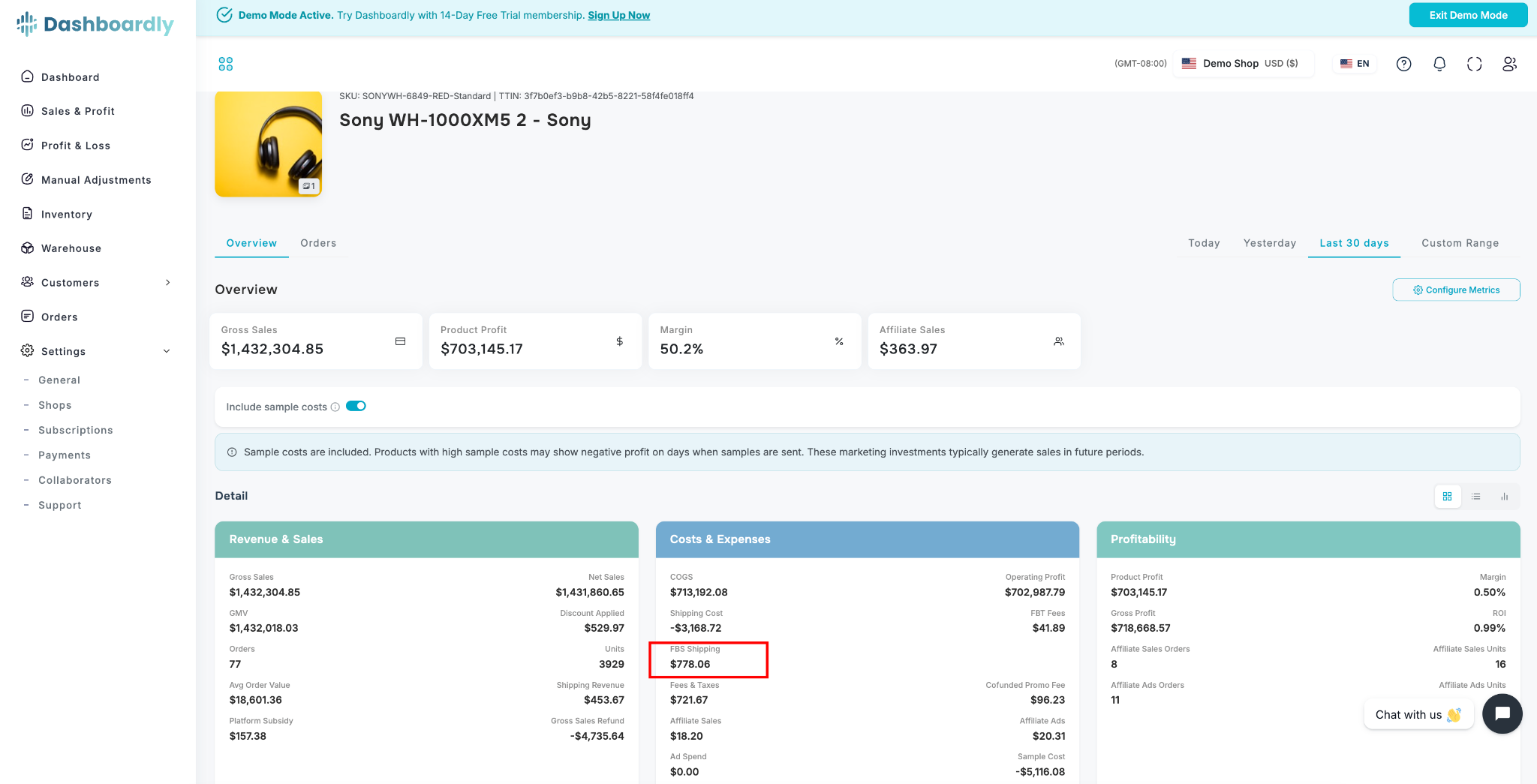
On individual Product pages, you can also see shipping costs broken down per SKU, so you know exactly which products cost more to ship.
Priority System
Order-level costs always override inventory defaults:
- If you set a default of $5 per unit in Inventory, but then import a CSV with $8 for a specific order, that order will use $8.
- This lets you set general defaults and still make corrections for specific orders when needed.
| Source | Priority | Description |
|---|---|---|
| CSV Import / Manual Adjustment | Highest | Order-specific cost, overrides everything |
| Inventory Default | Lowest | Per-SKU default, used when no order-level cost exists |
Method 4: Per Order Flat Rate (Replace TikTok Shipping)
If you know your average shipping cost per order and want a simple, automatic approach, use the Per Order mode in Manual Adjustments. This is ideal if your shipping cost is roughly the same for every order.
How It Works
- Go to the Manual Adjustments page.
- Click New Adjustment.
- Set it up:
- Type: Expense
- Category: FBS Manual Shipping
- Amount mode: click Per Order (the third toggle button)
- Cost per order: enter your average shipping cost (e.g., $6.00)
- Start Date: the date you want this to start from
- Apply to: choose Regular orders only, Sample orders only, or All orders
- Replace TikTok shipping data — this toggle appears automatically when you select FBS Manual Shipping in Per Order mode.
- ON (default): Your flat rate replaces TikTok's estimated shipping for your seller-shipped orders. This prevents double-counting.
- OFF: Your flat rate is added on top of TikTok's shipping data. Use this if TikTok's numbers are accurate and you want to add extra costs.
- Click Save.
What Gets Replaced
When the toggle is ON, only shipping for seller-shipped (FBS) orders is replaced — orders where you create the shipping label yourself. Shipping for FBT (Fulfilled by TikTok) orders and TikTok-shipped orders is not affected.
Example Setup
For a store with two shipping tiers:
- Create one adjustment: $6/order for Regular orders only
- Create a second adjustment: $18/order for Sample orders only
Each adjustment calculates automatically: daily expense = rate x number of matching orders that day.
💡 Tip: If you previously used Inventory Defaults (Method 1) for FBS shipping and switch to Per Order (Method 4) with the replace toggle ON, you may want to remove your inventory defaults to avoid double-counting. The Per Order flat rate handles everything automatically.
Summary
Four methods, full flexibility:
- Inventory Defaults -- set shipping costs at the product level (all SKUs inherit) or per individual SKU
- Bulk CSV Import -- add costs to many orders at once on the Orders page
- Manual Adjustments -- correct individual orders as needed
- Per Order Flat Rate -- set a flat $/order rate that replaces TikTok's estimated shipping for seller-shipped orders
Your P&L stays accurate regardless of which method you use.