
Visão geral
As configurações de VAT oferecem aos vendedores do Reino Unido e da UE um local por loja para estimar o VAT sobre vendas e o VAT recuperável de taxas elegíveis do TikTok e de gastos com anúncios que incluem VAT. Cada loja tem sua própria configuração, portanto uma conta com lojas em países diferentes pode usar a alíquota e o tratamento adequados para cada mercado. O Dashboardly fornece estimativas para relatórios; confirme o tratamento de VAT e os valores das declarações com seu contador.
Abra Configurações de VAT na barra lateral esquerda enquanto a loja que deseja configurar estiver ativa. A página está disponível para lojas no Reino Unido ou na União Europeia. Ao trocar a loja ativa, a configuração exibida também muda. Se uma loja elegível não mostrar as configurações de VAT, recarregue o Dashboardly e confirme que seu mercado do TikTok Shop está registrado corretamente. Sessões ativas também verificam o acesso aproximadamente uma vez por minuto; abas em segundo plano podem demorar mais. Entre em contato com o suporte do Dashboardly se a página continuar ausente.
Testar as configurações de VAT na demonstração
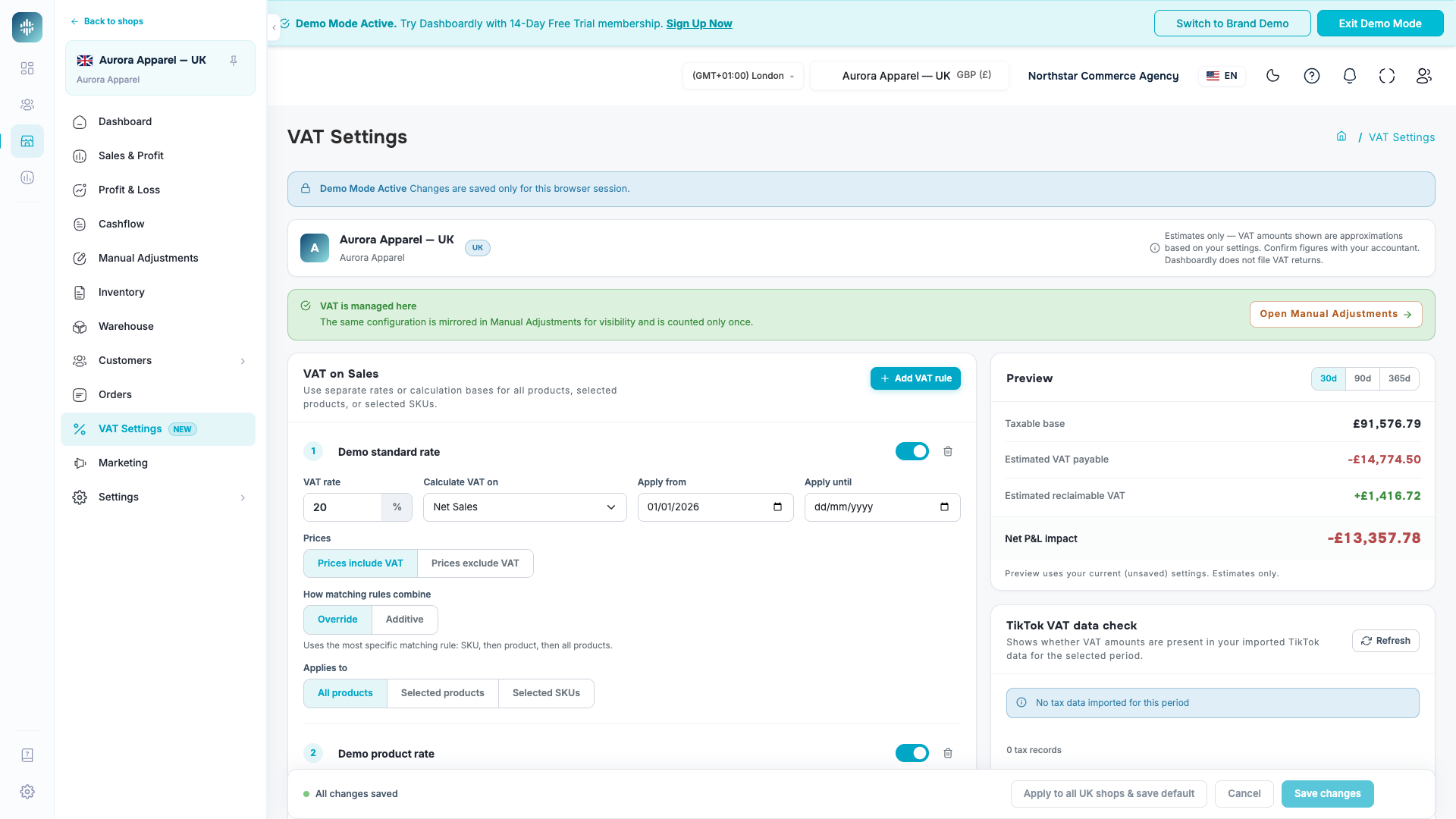
Abra Agency Demo, selecione Aurora Apparel — UK e abra Configurações de VAT na barra lateral dessa loja. O exemplo contém uma regra para todos os produtos de 20%, uma regra de Produto de 5%, uma regra de SKU de 0% e configurações de recuperação. São exemplos ilustrativos, não classificações fiscais dos produtos apresentados.
Você pode editar e visualizar regras, salvá-las e consultar seu espelho somente leitura em Ajustes Manuais sem sair da loja selecionada. As alterações de VAT ficam restritas à sua sessão de demonstração; outro visitante começa com os exemplos originais. Os relatórios financeiros existentes da demonstração usam a base compartilhada de dados de exemplo. Lojas de demonstração dos EUA não mostram configurações de VAT.
VAT sobre vendas
Adicione uma regra de VAT sobre vendas para incluir o VAT estimado a pagar nos relatórios financeiros. Cada regra tem nome, alíquota de VAT registrada, período ativo, métrica de vendas tributáveis, modo de preços e escopo de catálogo próprios. Você pode manter uma regra para toda a loja ou adicionar regras separadas para produtos e SKUs com alíquotas diferentes. Regras adicionais começam desativadas: selecione escopo e datas e ative-as quando estiverem prontas. A prévia combina todas as regras do período selecionado antes de salvar. Campos inválidos ou regras de substituição conflitantes mostram uma mensagem de validação em vez de uma estimativa.
Use Todos os produtos para uma alíquota de toda a loja, Produtos selecionados para um ou mais anúncios completos de produto ou SKUs selecionados para variantes selecionadas. Substituir é o comportamento normal: quando os escopos se cruzam, prevalece a regra de substituição ativa mais específica. Uma regra de SKU substitui sua regra de Produto, e uma regra de Produto substitui a regra de todos os produtos. O Dashboardly remove as vendas mais específicas da regra de substituição mais ampla antes de calcular VAT, evitando tributar a mesma venda duas vezes. Regras de substituição do mesmo escopo não podem abranger o mesmo Produto ou SKU em datas sobrepostas.
Use Aditivo apenas quando dois cálculos de VAT precisarem ser aplicados intencionalmente à mesma venda. Uma regra aditiva é calculada além da regra de substituição correspondente e de todas as outras regras aditivas correspondentes. Isso preserva fórmulas históricas de VAT explicitamente acumuladas, mas pode fazer uma venda contribuir intencionalmente para mais de um cálculo. Não altere uma regra aditiva migrada para substituição nem crie uma nova regra aditiva sem confirmar esse tratamento para a loja.
Possível sobreposição de VAT lista pares de regras ativadas com datas sobrepostas quando pelo menos uma é aditiva. Os números correspondem às regras da página, mesmo com nomes idênticos. Confira produtos, datas e tratamento pretendido. Para uma regra de Produto associada a uma de SKU, o aviso indica uma possível sobreposição: não confirma que o SKU escolhido pertence ao produto selecionado. Regras desativadas ou com alíquota zero, períodos separados e seleções sem interseção no mesmo escopo não geram esse aviso. Ele é informativo e não altera nem impede salvar regras intencionalmente aditivas. Usuários somente leitura também podem vê-lo.
Se a intenção é cobrar VAT sobre vendas apenas uma vez, revise todas as regras ativas antes de alterar algo. Converter uma regra em substituição não impede outra regra aditiva correspondente de ser aplicada. Desativar ou remover uma regra indesejada altera os relatórios das datas que ela abrangia; confirme primeiro o tratamento histórico correto.
Regras aditivas preservam o sinal da métrica de vendas selecionada, assim como ajustes manuais percentuais. Um dia com mais reembolsos que vendas pode, portanto, reduzir a estimativa combinada de VAT. A base tributável combinada pode incluir a mesma venda mais de uma vez quando regras aditivas se sobrepõem; ela não é um total de vendas separado.
A prévia mostra cada valor de VAT pelo efeito sobre o lucro: uma cobrança a pagar é negativa, enquanto um crédito de VAT em período de reembolsos é positivo. VAT recuperável é positivo, salvo quando representa um estorno. Valores zero não têm sinal positivo nem negativo.
Regras de substituição usam uma base tributável não negativa em cada dia do relatório. Um dia com base negativa contribui zero para essa regra, por isso a estimativa pode diferir da aplicação direta da alíquota às vendas líquidas do mês inteiro. Fórmulas aditivas migradas mantêm o cálculo com sinal.
Uma regra de Produto ou SKU de 0% pode excluir itens de catálogo com alíquota zero de uma alíquota mais ampla de toda a loja. Por exemplo, uma loja britânica pode usar uma regra de todos os produtos de 20% e uma regra de SKU de 0% para um item de alíquota zero. Use regras com datas quando a alíquota mudar: encerre a antiga no último dia aplicável e inicie a nova no dia seguinte.
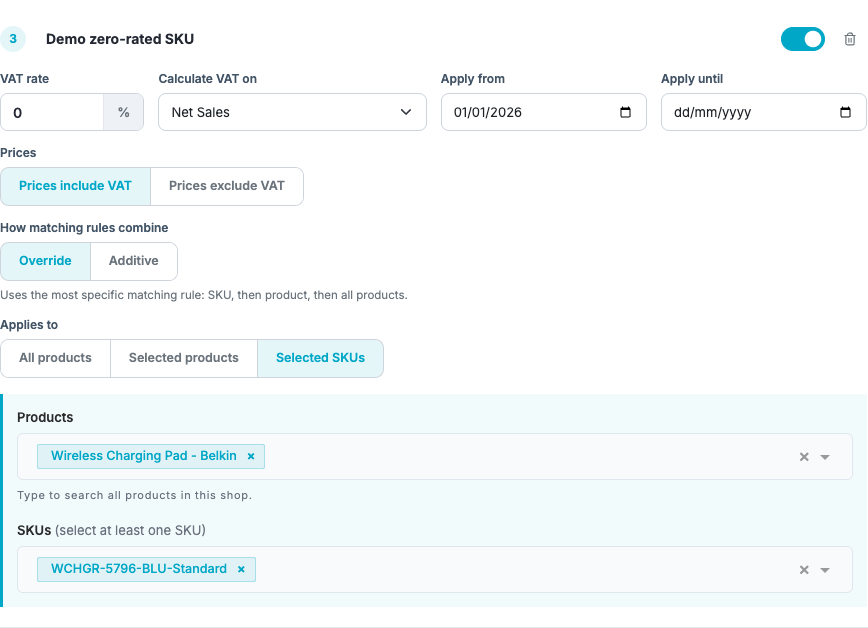
As datas de início e fim são dias corridos inclusivos no fuso horário da loja. Uma regra com início e fim na mesma data aplica-se apenas naquele dia. As datas usam YYYY-MM-DD, sem horário nem deslocamento UTC.
Os períodos de prévia contêm 30, 90 ou 365 dias corridos, incluindo hoje no fuso horário da loja ativa.
Nas configurações salvas, as estimativas de VAT a pagar e recuperável usam os mesmos valores financeiros de Lucros e Perdas para a mesma loja, datas e fuso horário. Quando Lucros e Perdas mostra valores preliminares, as estimativas de VAT podem mudar conforme esses valores são atualizados. Se alguns dias não puderem ser calculados, a prévia mostra um estado de nova tentativa, não estimativas zero. As configurações salvas e a verificação separada dos dados de VAT do TikTok continuam disponíveis.
O modo de preços controla a aplicação da alíquota:
| Modo de preços | Quando usar | Exemplo com alíquota de VAT de 20% |
|---|---|---|
| Preços incluem VAT | O valor de vendas selecionado já inclui VAT | Um valor de £120 com VAT contém £20 de VAT, então o Dashboardly extrai 16.67% do valor |
| Preços não incluem VAT | O valor de vendas selecionado é antes de VAT | Um valor líquido de £100 gera £20 de VAT, então o Dashboardly aplica os 20% completos |
Escolha o modo separadamente em cada regra para corresponder ao registro dos preços dos produtos e da métrica de vendas escolhida. Alterar o modo muda a estimativa de VAT mesmo quando a alíquota registrada não muda.
A porcentagem abaixo do modo de preços é a parcela de VAT da base de vendas selecionada, não outra alíquota registrada. Com Preços incluem VAT, uma alíquota registrada de 20% extrai 20 ÷ 120, aproximadamente 16.67% da base. Inserir 16.67% como alíquota registrada extrai aproximadamente 14.29%. Mantenha a alíquota registrada em 20% quando essa for a aplicável; não insira 16.67% apenas porque os preços incluem VAT. A porcentagem exibida é arredondada para facilitar a leitura, enquanto a prévia financeira usa a alíquota salva. A base escolhida importa: o valor tributável com VAT não é necessariamente a métrica Vendas Brutas antes de descontos do relatório.
Escolher a base de vendas
Use Calcular VAT sobre em cada regra de VAT sobre vendas para escolher o valor correspondente ao tratamento contábil. A base escolhida altera a estimativa de VAT; não muda a definição de vendas líquidas nem adiciona receita ao lucro líquido.
| Base de vendas | O que inclui |
|---|---|
| Vendas Líquidas | A métrica de vendas de produtos do relatório, excluindo frete pago pelo comprador. Para lojas que usam vendas líquidas pagas pelo cliente, descontos de produto financiados pelo TikTok são excluídos. Reembolsos de produtos são informados separadamente. |
| Vendas Líquidas creditadas ao vendedor | Receita de produtos após descontos financiados pelo vendedor, incluindo o financiamento de produto do TikTok, antes de reembolsos de produtos. Frete pago pelo comprador é excluído. |
| Receita do vendedor após reembolsos (inclui frete pago pelo comprador) | Receita de produtos do vendedor incluindo financiamento do TikTok, mais frete pago pelo comprador, menos receita de produtos e frete do comprador reembolsados. |
Escolha Receita do vendedor após reembolsos (inclui frete pago pelo comprador) quando a base pretendida incluir descontos de produtos financiados pelo TikTok e frete pago pelos compradores, após reembolsos. Os reembolsos de produtos estornam a receita de produtos do vendedor, incluindo a parte financiada; estornos de descontos do vendedor são considerados. Uma recuperação separada do financiamento não é subtraída novamente. Essa base exclui subsídios de frete do TikTok, cobranças de transportadoras, taxas da plataforma e comissões de afiliados. Pedidos cancelados antes do envio não geram uma venda nesse cálculo.
Por exemplo, €1,000 em vendas de produtos pagas pelos clientes, €200 em financiamento de produtos do TikTok e €40 em frete pago pelos compradores, menos €120 de receita de produtos do vendedor estornada e €10 de frete do comprador reembolsado, geram uma base de €1,110. Com alíquota registrada de 21% e Preços incluem VAT, a estimativa de VAT é €192.64: €1,110 × 21 ÷ 121. Mantenha a alíquota registrada em 21%; não use 17.36% como alíquota.
A base acompanha as datas do relatório. Em um relatório por data do pedido, vendas seguem a data do pedido e reembolsos a data do reembolso. Um reembolso de venda anterior pode reduzir um período posterior. As datas inicial e final das regras são dias corridos inclusivos locais da loja. Regras Substituir usam uma base não negativa por dia: um dia com mais reembolsos que receitas contribui zero, em vez de crédito. Regras Aditivo mantêm o cálculo com sinal e podem gerar crédito no período de reembolsos. Revise esse comportamento antes de comparar a estimativa com um cálculo aplicado uma única vez ao total mensal.
O financiamento de produtos do TikTok já contribui para o lucro operacional e o lucro líquido por meio da atividade financeira do vendedor. Não é necessário um ajuste adicional de receita para incluí-lo no lucro. Adicioná-lo novamente contaria a mesma receita duas vezes. Revise a base de vendas separadamente desse cálculo do lucro.
VAT recuperável
Ative Recuperação de VAT sobre Taxas do TikTok quando sua empresa puder recuperar VAT cobrado em serviços elegíveis do TikTok. Informe a alíquota de recuperação e a data de vigência e selecione apenas grupos de taxas respaldados pelas faturas e pelo tratamento contábil. Os grupos disponíveis incluem taxas e impostos, taxas FBT, Smart Promotion, comissões de afiliados e serviços de armazém FBT. A prévia é recalculada ao mudar a alíquota, a data ou as taxas selecionadas, permitindo revisar a recuperação estimada antes de salvar. Ela usa os valores atuais do formulário, incluindo mudanças não salvas.
Gasto líquido com anúncios (VAT incluído) é uma seleção separada e opcional para publicidade paga. Começa desativada. Ative-a somente quando o gasto líquido com anúncios mostrado no Dashboardly já incluir VAT recuperável pela empresa e as faturas de publicidade confirmarem esse tratamento. A estimativa usa o gasto líquido após créditos publicitários com a alíquota de recuperação e a data de vigência acima. Por exemplo, £120 de gasto líquido com anúncios incluindo VAT a uma alíquota de 20% contêm £20 de VAT. O gasto exibido não muda; a recuperação estimada contribui separadamente para o lucro.
A palavra Líquido significa após créditos publicitários; não determina se VAT está incluído. Se sua fatura acrescenta VAT ao gasto com anúncios exibido no Dashboardly, deixe essa opção desativada: extrair VAT desse gasto superestimaria VAT recuperável e lucro. Comissão de anúncios de afiliados continua sendo uma comissão separada de criador, portanto selecioná-la não recupera VAT de publicidade paga. Não insira também um ajuste manual pela mesma recuperação. Confirme o tratamento correto para cada loja antes de aplicar um padrão regional de agência.
Frete é uma escolha separada. Ative sua recuperação apenas quando o serviço de envio mostrado pelo TikTok for elegível nessa loja. Por exemplo, custos de transportadora faturados diretamente para sua empresa podem precisar ser recuperados pela fatura da transportadora, não pelos relatórios de taxas do TikTok. O painel de status também informa se o TikTok retorna campos de VAT utilizáveis no período selecionado; campos zero ou ausentes não impedem a configuração manual.
Em uma configuração britânica comum com preços ao consumidor já incluindo 20% de VAT, selecione Preços incluem VAT e informe uma alíquota registrada de 20%. O Dashboardly extrai 16.67% do valor de vendas com VAT; não subtrai mais 20%. A recuperação de taxas da plataforma, processamento FBT e Smart Promotion pode ser ativada separadamente quando as faturas e o tratamento contábil a respaldarem. Selecione recuperação de comissões de afiliados apenas se a cobrança do criador ou afiliado incluir VAT recuperável. Confirme a elegibilidade com seu contador em vez de supor que todo afiliado está registrado para VAT.
Aplicar uma configuração de VAT às lojas da agência
Proprietários de agência podem salvar a configuração geral para todos os produtos da loja britânica ou da UE ativa como padrão regional. Configure e revise a loja primeiro, depois escolha Aplicar a todas as lojas de UK e salvar como padrão ou a ação equivalente do mercado da UE. O Dashboardly aplica todas as regras de vendas para todos os produtos, incluindo datas e comportamento, mais a alíquota de recuperação e os grupos de taxas selecionados a cada loja elegível da região. Regras de Produto e SKU continuam específicas por loja porque os identificadores do catálogo são diferentes. Lojas fora da região escolhida não mudam, e as que não puderem ser atualizadas aparecem no resultado para revisão separada. Colaboradores e usuários de suporte somente leitura podem consultar as configurações da loja selecionada, mas não ler, criar nem alterar o padrão regional de um proprietário de agência.
Aplicar um padrão regional substitui as regras de todos os produtos e as configurações de recuperação da loja, preservando as regras de Produto e SKU existentes. Essas regras específicas mantêm identidades, alvos de catálogo, datas, alíquotas e comportamento. Revise a prévia combinada em cada loja quando uma regra aditiva específica se acumular intencionalmente à nova alíquota geral.
O padrão regional também é aplicado automaticamente quando a agência conecta uma nova loja nesse mercado. Isso evita repetir a configuração para cada cliente, mantendo separados os tratamentos britânico e da UE. O padrão não determina a data legal de vigência: informe antes de salvar a data confirmada pela marca e pelo contador. Revise faturas e registro de VAT de cada cliente, especialmente comissões de afiliados e frete, pois uma alíquota compartilhada não garante recuperação de todos os grupos de custos para todas as empresas.
Ajustes manuais de VAT existentes
Uma despesa manual de VAT existente tem prioridade sobre um padrão regional quando uma nova loja é conectada. Revise essa despesa na página de configurações de VAT da loja antes de adotá-la ou mudar seu escopo.
Fórmulas percentuais existentes compatíveis de Taxes / VAT / GST, migradas de Ajustes Manuais, já aparecem como regras salvas nas configurações de VAT. Alíquotas, métricas base, datas e seleções de Produto ou SKU são preservadas, incluindo fórmulas recorrentes e fórmulas percentuais de um dia. Você não precisa adicionar essas regras novamente. Se uma entrada compatível ainda não foi adotada, escolha Gerenciar nas Configurações de VAT para gerenciá-la nessa página.
Fórmulas percentuais migradas usam Preços não incluem VAT e Aditivo para que fórmulas históricas sobrepostas mantenham o mesmo valor combinado de P&L. Uma fórmula antiga de 16.67% permanece um cálculo de 16.67%; não é alterada silenciosamente para uma regra de 20% com VAT incluído. Revise o modo de preços e o comportamento com seu contador antes de alterá-los.
Após a migração, cada regra pode continuar em Ajustes Manuais para consulta, marcada como gerenciada pelas configurações de VAT. São cálculos compartilhados, não despesas duplicadas, e cada valor é contado uma vez. Edite as regras em Configurações de VAT, não pelo formulário de ajustes manuais.
A coluna Products mostra o escopo de catálogo da regra: Todos os produtos, Produtos selecionados com o número de produtos ou SKUs selecionados com o número de variantes. O mesmo escopo aparece no celular. Ele descreve a regra de VAT, não uma segunda alocação de despesas manuais. O histórico de VAT arquivado sem regra ativa recebe o rótulo Gerenciado nas Configurações de VAT, em vez de um escopo de produto presumido.
Uma entrada de receita de VAT fixa e única, como a recuperação de uma fatura recebida em determinado dia, permanece um ajuste manual histórico normal. Não é convertida em regra de VAT sobre vendas e continua afetando aquele período histórico exatamente como informada.
Enquanto VAT sobre vendas estiver ativado para uma loja, o Dashboardly impede adicionar, converter ou retomar um ajuste manual separado de VAT para o mesmo escopo. Altere as configurações de VAT existentes. Despesas não relacionadas e outras lojas não são afetadas.
A linha gerenciada permanece visível e somente leitura se as configurações de VAT estiverem temporariamente indisponíveis. Nesse caso, contate o suporte do Dashboardly antes de mudar esse cálculo de VAT.
O Dashboardly solicita revisão em vez de mover entradas automaticamente quando a titularidade é ambígua, um ajuste de todo o comerciante pode se aplicar a várias lojas, os itens do catálogo não pertencem à loja escolhida ou a alocação não é suportada. Novas regras Substituir sobrepostas no mesmo escopo também são inválidas. Fórmulas percentuais antigas compatíveis são migradas como regras aditivas, nas quais a sobreposição é intencional e preserva a soma original. Resolva os conflitos informados em Ajustes Manuais e volte para Configurações de VAT.
Outros registros de VAT
As configurações de VAT estimam VAT sobre vendas e recuperável para relatórios financeiros. Mantenha estes outros registros nos locais existentes:
- VAT informado pelo TikTok: O Dashboardly mostra linhas de VAT ou impostos de liquidação em Taxas e impostos quando fornecidas pelo TikTok. Não crie um segundo ajuste para a mesma linha.
- Um pagamento ou reembolso exato de VAT: Registre um ajuste manual fixo e único de Pagamentos de IVA/GST na data real. Ele permanece separado da estimativa recorrente de vendas.
- VAT de importação sobre estoque: Acrescente-o ao custo posto de produto ou SKU em Estoque, para as margens incluírem o custo total de levar o estoque ao país do armazém.
- Seu número de VAT ou identificação fiscal nas faturas do Dashboardly: Abra Configurações > Assinaturas > Gerenciar Cobrança e atualize endereço de cobrança e identificação fiscal no portal de faturamento.
Não use um segundo ajuste manual recorrente para um período já coberto pelas configurações de VAT. Um pagamento ou reembolso fixo e único pode permanecer separado se representar uma transação real, não outra estimativa.
Perguntas frequentes
Por que as configurações de VAT não aparecem para uma das minhas lojas?
A página é específica por loja e só está disponível para lojas britânicas ou da UE. Confirme que a loja correta está ativa e que seu mercado do TikTok Shop está registrado corretamente. Lojas dos EUA e outros mercados não suportados não mostram a página. Se a loja for elegível, mas a opção continuar ausente depois de um minuto e de recarregar, entre em contato com o suporte do Dashboardly.
O Dashboardly envia minha declaração de VAT?
Não. O Dashboardly estima VAT a pagar e recuperável para relatórios gerenciais. Ele não envia declarações, não determina elegibilidade legal e não substitui faturas e registros exigidos pela autoridade fiscal.
Por que a cobertura de VAT do TikTok mostra zero?
O TikTok pode retornar zero ou omitir campos de VAT mesmo quando um vendedor tem obrigação de VAT. O painel de cobertura descreve os dados recebidos no período selecionado. Você ainda pode configurar uma alíquota manual e grupos de taxas elegíveis quando os campos do TikTok não forem utilizáveis.
O Dashboardly preserva os valores de VAT fornecidos com transações do TikTok separadamente das estimativas configuradas. Um valor diferente de zero não confirma que VAT de publicidade, taxas da plataforma ou comissões de afiliados seja recuperável. Esses valores de transação não são faturas de VAT, não ativam recuperação automaticamente e não são deduzidos novamente do lucro. O Dashboardly atualmente não importa faturas fiscais automaticamente; use suas faturas e a orientação do contador ao escolher despesas elegíveis.
Produtos diferentes podem usar alíquotas de VAT diferentes?
Sim. Adicione regras de Produto ou SKU separadas e selecione os itens de catálogo para cada alíquota. Nas regras normais de substituição, aplica-se primeiro a regra de SKU, depois a de Produto e depois a de todos os produtos. Use uma regra específica de substituição de 0% para itens de alíquota zero que precisam ser excluídos de uma taxa mais ampla, e períodos sem sobreposição quando a alíquota mudar. Use Aditivo somente para um cálculo de VAT intencionalmente acumulado que deva ser aplicado além de outra regra correspondente.
Por que consigo ver a página, mas não salvar alterações?
Usuários de suporte com acesso shop spy têm acesso somente leitura. Para um colaborador, o proprietário da conta pode conceder VAT Settings: View ou VAT Settings: Edit para cada loja elegível atribuída em Configurações > Colaboradores. View permite revisar regras e prévias, mas não salvar alterações; Edit permite alterações para essa loja. Isso é independente do acesso a Lucros e Perdas. Colaboradores existentes que antes acessavam as configurações de VAT via Lucros e Perdas mantêm esse acesso até o proprietário alterar explicitamente sua permissão de VAT.