
Dashboardly uses one consistent filter drawer across its main reporting pages. This keeps the report itself visible while you choose a sales scope, sample-cost treatment, product or SKU, and other page-specific filters. Account-wide reporting defaults live separately under Settings > Reporting, where authorized team members can manage the starting values used by everyone on the account.
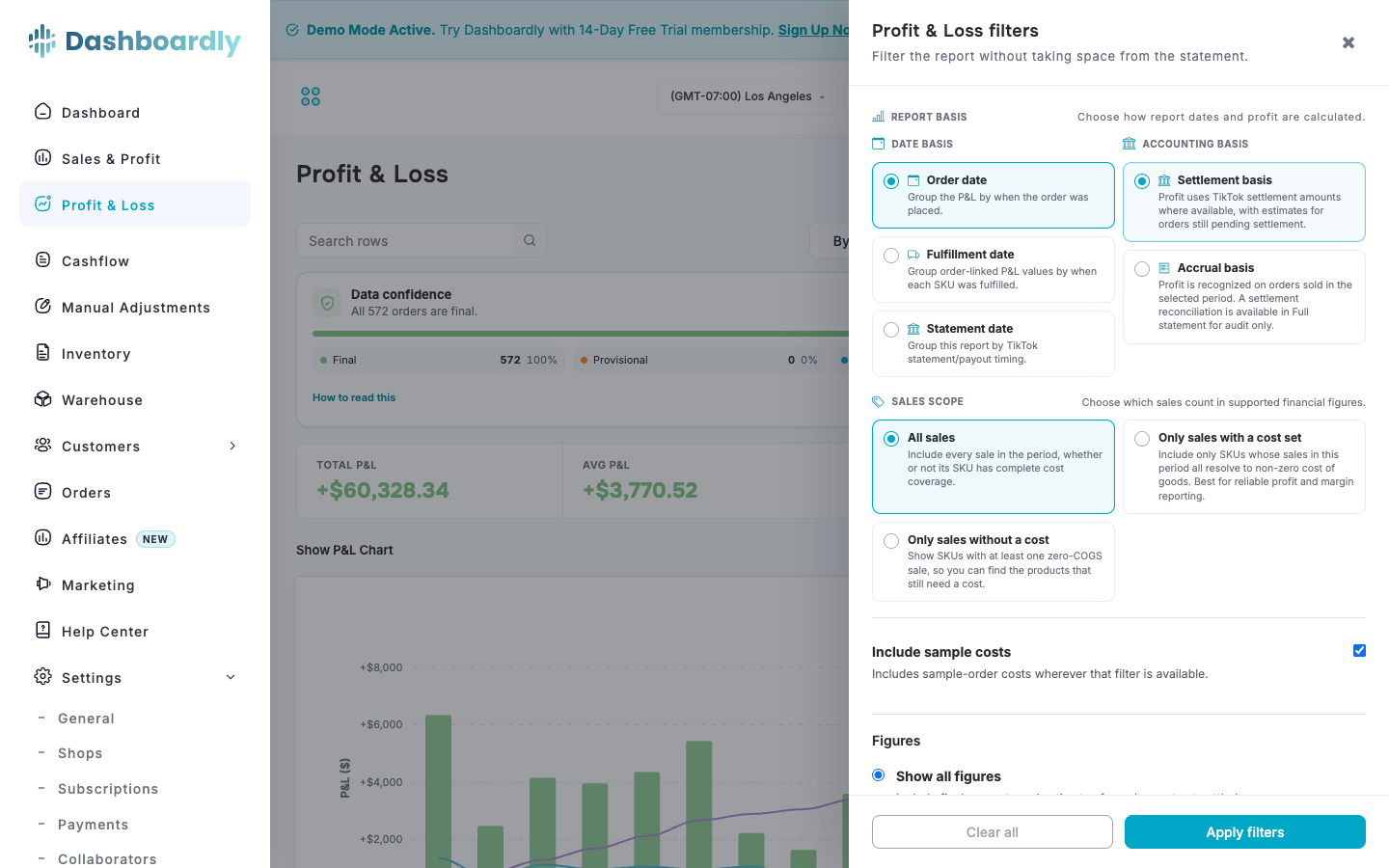
Where to find reporting filters
Select Filters in the page toolbar to open the full-height drawer from the right. It covers the header while open so the filter title, close action, and Apply controls remain in one uninterrupted panel. Report basis uses the same flat section layout as Sales scope, making the available choices easier to compare without a second card inside the drawer. The badge on the Filters button shows how many filters are currently applied. Choices inside the drawer are staged, so the report does not reload after every click: select everything you need, then choose Apply filters. Closing the drawer does not apply changes; Dashboard asks you to confirm before discarding a changed draft. Clear all returns the staged data filters to your account defaults — it does not switch them to a fixed value, so an account that excludes sample costs stays that way. Display options such as Show P&L Chart, % of GMV, and Hide empty rows are left exactly as you set them. After Clear all, choose Apply filters to update the report.
| Page | Filters in the drawer | Controls kept outside the drawer |
|---|---|---|
| Dashboard | Report basis, figures, sales scope, sample costs, cancelled-order treatment, and the four overview-card periods | Chart dates, Customise metrics, and widget-specific controls |
| Profit & Loss | Report basis, Product and SKU, figures, sales scope, sample costs, cancelled-order treatment, and display choices | Search, period, date range, and export |
| Saved Custom P&L (eligible shops) | The same Report basis, Product and SKU, figures, sales scope, sample costs, cancelled-order treatment, and display choices as Profit & Loss | Report selector, prepared month, period, date range, configuration, and export |
| Sales & Profit | Report basis, figures, sales scope, sample costs, and cancelled-order treatment | Date range, search, and export |
| Product Overview | Report basis, figures, sales scope, sample costs, and cancelled-order treatment | Product actions and metric configuration |
| Product > Orders | Order status, US state where available, minimum amount, and maximum amount | Search, the page's date tabs, map, columns, and export |
Report basis now lives inside the same drawer as the filters it controls. This keeps the choice next to any option that depends on it and removes the need to close Filters to find a separate menu. For example, you can open Profit & Loss > Filters, choose Order date, Only sales with a cost set, exclude sample costs, select two SKUs, and apply everything with one report refresh.
Dashboard, Profit & Loss, Sales & Profit, and Product Overview share the same financial reporting choices. Order date follows the sale date. Fulfillment date follows fulfilled activity and uses Accrual basis. Statement date, when available for the active shop, uses TikTok's finalized reporting calendar and is always paired with Settlement basis. On Sales & Profit and Product Overview, Dashboardly attributes the statement activity across the visible products and SKUs, then reconciles those rows back to the same shop total shown by Profit & Loss. Selecting a product or SKU narrows the rows without changing the whole-shop allocation behind them. All accounting-basis choices supported by the active shop remain in the same Report basis section; Accrual is disabled with an explanation while Statement date is selected.
Sales scope remains available on Statement date. Dashboardly derives the costed or uncosted Product/SKU population from finalized order-bearing statement activity in the selected Seller Center days, including later refunds for older orders. It evaluates COGS using each order's original sale day, so effective-dated costs and FIFO allocations do not move to the payout date. Switching between Order date and Statement date preserves the selected Sales scope; the visible report, fee details, and Sales & Profit XLSX export use the same scope and calendar. The workbook includes exact Product ID and SKU ID text columns so spreadsheet apps do not round long TikTok identifiers. For orders with several SKUs, finalized TikTok SKU transaction detail is used where available; older parent-only statement rows are split by the order's original sales mix. Shop-wide adjustments use that same Statement-period sales mix. This keeps Profit & Loss, Sales & Profit, SKU details, and exports aligned to the cent instead of mixing Statement-date numerators with Order-date totals.
Free samples are a non-cash exception inside Statement-date reports because TikTok does not create a payout for a free item. When Include sample costs is on, Dashboardly keeps the sample's product cost and seller-funded shipping on the date the sample activity occurred. The same rule is used on Profit & Loss, Sales & Profit, and Product Overview, so the shop, product, and SKU views continue to match even though the sample itself has no statement transaction. If TikTok has already included a sample platform fee in the finalized settlement, Dashboardly leaves it in that settlement and does not deduct it a second time under sample costs.
On Sales & Profit and Product Overview, Date basis and Accounting basis are staged together. For example, moving from Statement date to Order date + Accrual basis does not briefly run a mixed combination: Dashboardly applies both selections with one refresh when you choose Apply filters. The applied combination is also written to the page link, so a reload or shared link opens the same reporting basis. If a required financial source cannot be verified, the whole response returns to Settlement basis instead of mixing Settlement and Accrual values.
On Sales & Profit, a link with both valid custom dates opens that exact range even if the link omits a period tab. Dashboardly adds the Custom Range choice to the link so a reload keeps the same dates.
For current-period profitability — including Today, Yesterday, and the current month — use Order date + Accrual basis, All sales, and your intended sample-cost setting. This groups revenue and costs by when the orders were sold, including estimates for financial details that TikTok has not yet finalized. Use Statement date + Settlement basis when reconciling a completed period to TikTok statements or payout reports. A recent Statement-date range can look incomplete because some orders have not reached a statement yet; it is a payout-timing view, not the recommended view of current sales performance. Dashboardly only uses an official statement header after the matching transaction snapshot is complete. Until then, the whole visible range stays on detailed transaction data so revenue from a newer header cannot be combined with partial costs.
Product and SKU choices display the catalog image when one is available. If a product does not have an image, Dashboardly shows a standard product placeholder so every option remains easy to scan.
Saved Custom P&L reports use the same right-side filter drawer as the Standard P&L. Switching from the Standard P&L to a saved custom report keeps the active filter scope. Opening a prepared Custom P&L month restores the scope saved with that prepared evaluation, so the drawer and the report remain in sync.
Account defaults in Settings
Go to Settings > Reporting to manage the starting reporting choices for the account. These settings apply to every user and collaborator with access to the account and follow them across devices. The available defaults are Date basis, Accounting basis, Sales scope, Include sample costs, Figures, and Include cancelled orders in sales. Settings uses the same controls and combination rules as the financial reports. If a choice is temporarily unavailable for the active shop or date basis, the report shows the supported combination without erasing your saved preference.
Changing an account default does not erase another person's private page choices. Each page combines the account defaults with that user's saved page override. Under My page overrides, the Settings page lists only the pages where you currently have a personal choice saved — Dashboard, Profit & Loss, Sales & Profit, or Product page. If a page is not listed, it is already using the account defaults. You can return one listed page, or all of them, to the account defaults.
Only an owner or a collaborator with Reporting settings: Edit permission can change the shared account defaults. A collaborator with Reporting settings: View can open the section and review the values without changing them. People who can use a reporting page can still change its filters and save their own page choices; they do not need permission to edit the account-wide defaults.
Choose where filter changes apply
Account defaults give the team a consistent starting point without forcing every report to remain identical. Suppose an owner sets All sales, Settlement basis, and Include sample costs for the account. An inventory manager can then use Only sales without a cost on their own Sales & Profit page to find missing COGS, while the owner and other collaborators continue to see the shared defaults.
When you change the six shared reporting choices and select Apply filters, Dashboardly asks where the change should apply:
- This page only saves a personal choice for the current Dashboard, Profit & Loss, Sales & Profit, or Product page. It does not change another person's report or the shared account defaults.
- All reporting pages promotes the complete reporting combination to the shared account defaults and removes your own older page exceptions. This option requires Reporting settings: Edit permission. Another user's personal page exceptions remain unchanged.
On Dashboard, the overview-card period remains personal even when you choose All reporting pages. Date ranges, Product/SKU selections, display switches, and other page-specific controls also stay with their own page; only the six shared reporting choices become account defaults.
Select Don't ask again before choosing a scope if you want Dashboardly to reuse that answer. The choice is saved for your user on the current account, so it does not affect another collaborator or another merchant account. Go to Settings > Reporting > When I apply reporting filters to switch between Ask every time, This page only, and All reporting pages. If you no longer have permission to edit shared defaults, Dashboardly asks again and disables the global option instead of silently ignoring your change.
You can still edit the shared values directly in Settings > Reporting. Review or clear existing personal choices under My page overrides.
Sales scope offers the same three customer-facing choices throughout the supported reports: All sales, Only sales with a cost set, and Only sales without a cost. Using the same choices on each page makes it easier to compare totals without accidentally mixing different cost-coverage rules.
Combining date basis, figures, and cancellations
The same controls appear on Dashboard, Profit & Loss, Sales & Profit, Product Overview, and Settings > Reporting. Some combinations answer incompatible questions, so unavailable options remain visible with an explanation.
| Date and accounting basis | Figures | Cancelled sales |
|---|---|---|
| Order date + Settlement | All figures, Settled orders only, or Fully settled days only | Optional |
| Order date + Accrual | All figures | Excluded |
| Fulfillment date + Accrual | All fulfilled activity | Excluded |
| Statement date + Settlement | All statement activity | Optional |
Settled orders only removes preliminary order figures but keeps independently incurred costs, such as product costs and advertising. It does not mean “hide every expense unless its order has settled.” Fully settled days only removes an entire reporting day when that day still contains preliminary or provisional figures. For example, if Monday is final and Tuesday still has unsettled activity, the latter choice excludes Tuesday's activity and costs together.
Include cancelled orders in sales shows cancelled sales alongside their matching refund presentation. It does not create extra Operating Profit or Net Profit. Cancelled orders remain excluded from paid Units. With Accrual selected, cancelled sales are excluded automatically.
Cancelled Orders, Cancelled Units and Cancelled Value are informational columns, and they keep showing whichever cancellation choice you make. On Sales & Profit you see the same values for each product, in the View SKUs breakdown, and in its CSV and XLSX exports. For example, a SKU with 16 cancelled orders shows 16 in the breakdown and 16 in the exported file. These columns never change Gross Sales, Net Sales or profit on their own; only Include cancelled orders in sales adds cancelled sales to the totals, together with the matching refund line. Cancelled order counts use the date the order was cancelled.
Your Order-date and Settlement-basis choices are remembered when you temporarily switch to another basis. Switching back restores them. Sales scope and sample costs remain available across the supported bases. To compare pages, match all six choices, the shop, exact dates, and reporting timezone. Product/SKU filters and page-specific periods still narrow only the report where you selected them.
Dashboard shows daily totals and daily-or-coarser financial reporting charts when the selected combination cannot support an hourly breakdown. It does not label a daily total as an hourly result. The separate Live Chart keeps its operational Order-date and Settlement-basis view when you change the other financial choices. Sales included applies there too: All sales uses an hourly comparison, while only sales with or without a cost uses daily periods.
Your interface language
Use the language selector in the desktop header or the language option in the mobile menu to choose your interface language. Dashboardly saves this choice to your personal profile, so it remains selected after you reload or sign in again. It does not change the reporting defaults shared by your team.
The interface changes language after the preference saves successfully. If saving fails, Dashboardly keeps your previous language and shows an error so you can retry.
Common questions
Why did closing the drawer not update the report?
Filter changes are deliberate. Choose Apply filters before closing the drawer. This prevents a large report—especially Profit & Loss—from refreshing several times while you are still selecting products, SKUs, and cost options.
Why can I change a page filter but not Settings > Reporting?
Your page filter is a personal reporting choice. Shared account defaults affect every user, so changing them requires Reporting settings: Edit permission. Ask the account owner to update your collaborator permissions if you need to manage the shared defaults.
How do I make Dashboardly ask where filters should apply again?
Go to Settings > Reporting > When I apply reporting filters and choose Ask every time. This resets a previous Don't ask again choice for your user on the current account; it does not change the report values themselves.
Why is Accrual basis unavailable?
Order-date Accrual reporting is available only for supported shops. Statement date always uses Settlement basis; Fulfillment date uses Accrual basis. Dashboardly explains unavailable choices and preserves your remembered settings so they return when the selected shop and date basis support them.